How to Change Your Plan and Billing Details
Check your current plan and usage, change plan or number of users, move between monthly and yearly billing, update your card and download invoices.
Only an owner or admin can change the plan or payment details. Everyone else can see the plan but cannot change it.
The pricing page lists current plans and prices.
See your plan
Go to Administration → Settings and open the Billing tab. It shows:
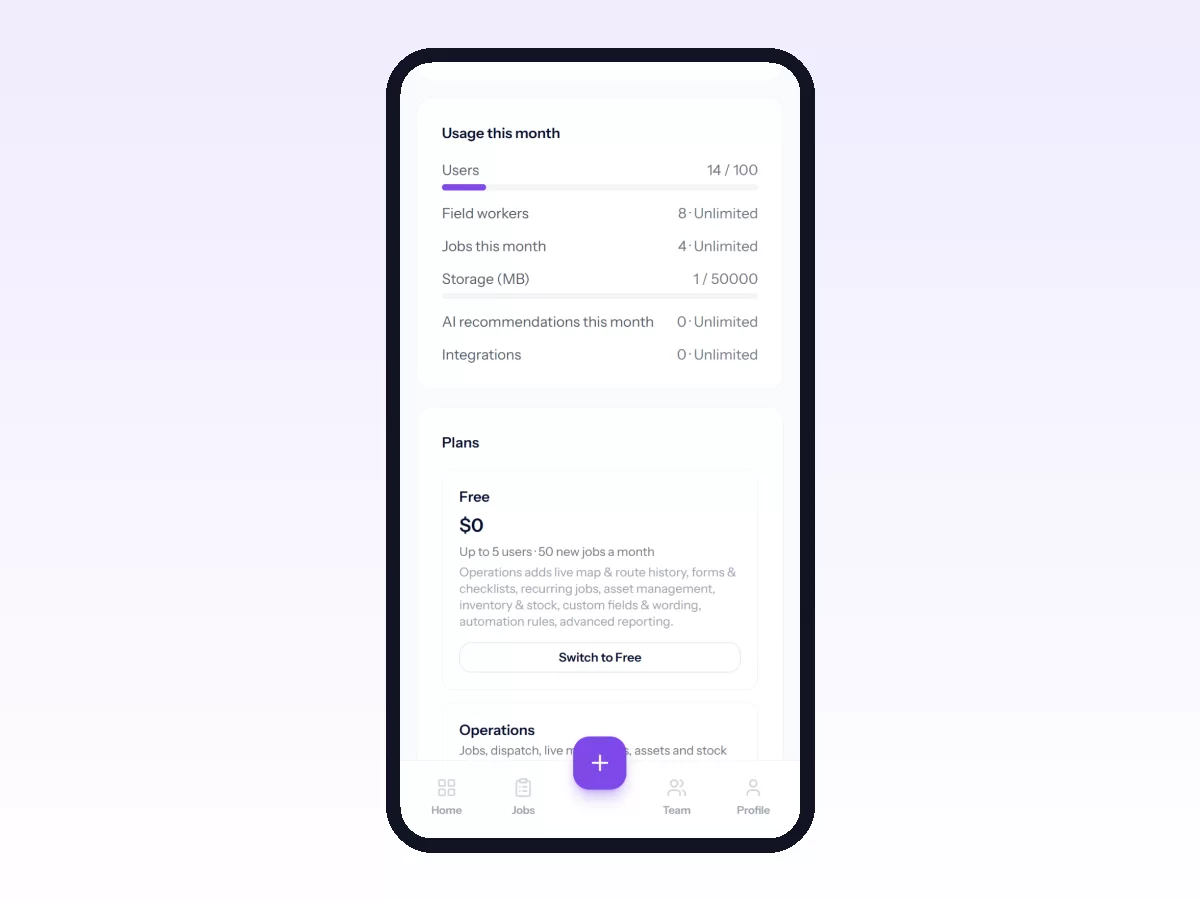
- Current plan and its status: trialing, active, past due or canceled.
- Usage this month: users, field workers, jobs this month, storage and integrations.
- Billing history: plan changes, payments, failed payments and changes to users.
Start paying or change plan
- In the plan comparison, find Operations or Operations + People and pick Monthly or Yearly under Billing period.
- Enter the number of users you need. The total updates as you type. On Operations + People, also enter your people-only staff (anyone with the Employee (HR only) role).
- Click the button to start paying or switch plan. A secure checkout from Paddle, our payment provider, opens for your card details.
- Your plan switches once the payment is confirmed. If the page has not updated after a minute, refresh it.
Paddle handles your card number. Movtro never sees or stores it.
Change the number of users
Change the number of users (and people-only users, on Operations + People) and confirm. Paddle immediately charges or credits the difference for the rest of the current period.
Switch between Operations and Operations + People
On a paid plan, click Switch to on the other plan and confirm. Paddle immediately charges or credits the difference for the rest of the current period.
Move to a smaller plan
Pick Downgrade at period end. You keep your current plan until the paid period ends, with no further charge, and then move to the smaller plan.
Update your card or download invoices
Click Manage payment & invoices under your current plan. This opens Paddle's billing page, where you can update your card and download invoices.
If a payment fails, the plan shows Past due with a message. Update your card promptly so you keep your plan.
Features not in your plan
If you open something your plan does not include, Movtro tells you and shows what upgrading would add.
Can't make the price work?
Use Talk to us under the plans. The Movtro team can set a lower price for your company.
Enterprise
For custom pricing, very large teams or special terms, use Contact us on the Billing tab and the Movtro team will move you over.