How to Create Custom Roles and Permissions
Use the standard roles as they are, change what each one can do, or make your own role (a warehouse lead, say) with just the permissions it needs.
Everyone in Movtro has a role, and the role decides what they can see and do. Movtro ships with standard roles, and you can make your own when none of them fits.
See the roles
Go to Team → People and open the Roles tab. Standard roles carry a Standard label. Open any role to see its permissions, grouped by area: jobs, dispatch, customers, assets, inventory, reports, HR and administration.
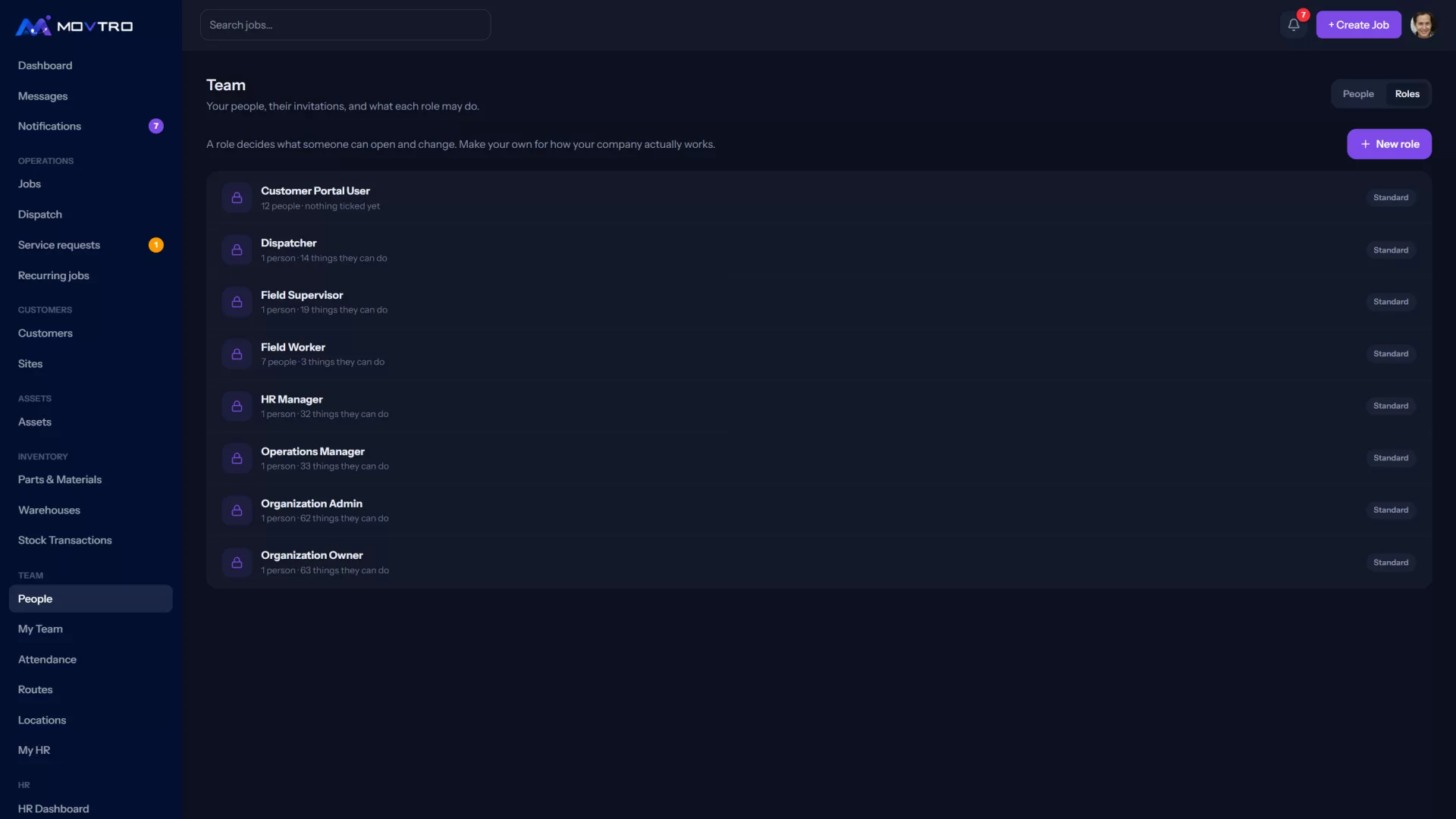
The Organization Owner can always do everything, so you can't change its permissions.
Create a role
- On the Roles tab, click + New role.
- Name it, for example "Warehouse Lead" or "Regional Supervisor".
- Tick the permissions it needs and leave the rest. Each permission explains in plain words what it allows.
- Click Create role.
Begin with the least access that still lets the person do their job. Adding a permission later is easy; taking one away is awkward.
Change a role
Open the role, change the ticks and click Save role. The change applies at once to everyone who has that role. Only people with permission to manage roles can edit them.
Give someone a role
- When you invite them, pick the role in the invitation. See how to invite your team and set their roles.
- Afterwards, go to Team → People, open the person and change their role.
Examples
- Warehouse Lead: inventory and stock transactions, plus viewing jobs, with no HR or billing.
- Regional Supervisor: dispatch, jobs and their own team's attendance, but not payroll.
- Office Assistant: creating jobs and managing customers and sites, without access to settings.
Things to know
- Pay and bank details are behind HR permissions, so give those only to people who need them.
- Customer contacts get the customer portal role, which only ever shows their own company's jobs, sites and documents.
- The Audit Log records every change to roles and permissions.