How to Invite Your Team and Set Their Roles
Inviting someone takes a minute. The role you give them needs more thought, so here is what each role in Movtro can see and what to do when you are unsure.
Adding people to Movtro takes a minute. The role you give them deserves more thought, because roles decide what each person can see and do, and that includes salaries and customer data.
Inviting someone
- Open Team → People.
- Invite them by email and choose their role.
- They get an email with a link, set their own password and join your organisation.
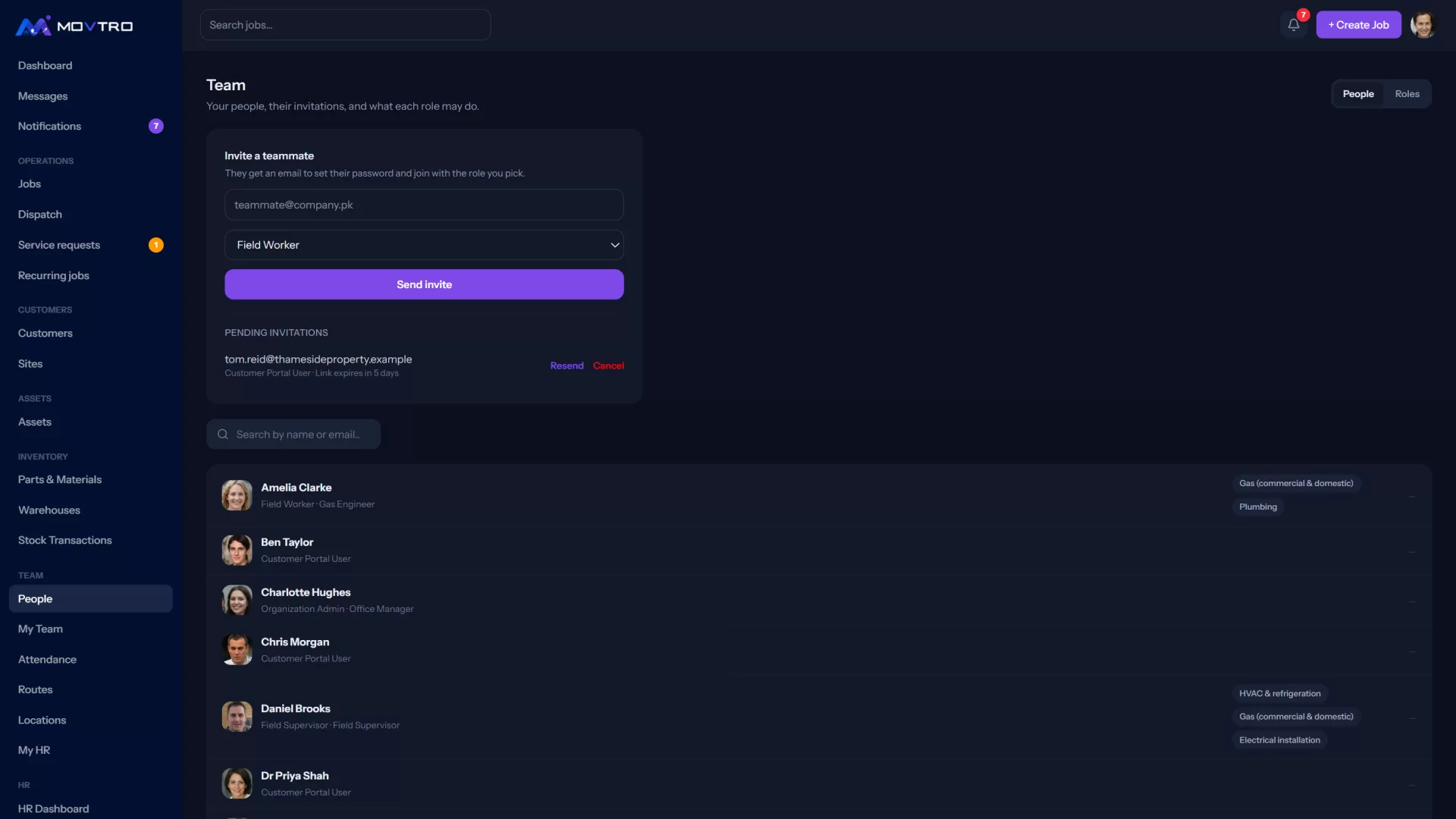
If the email never turns up, an owner or admin can send a fresh password reset link from the person's page, or set a password for them there.
Invitations that have not been accepted yet still count toward your plan's user limit, so you cannot invite more people than your plan has room for. See how pricing works.
Choosing a role
Movtro's standard roles follow what people do rather than how senior they are.
Organization owner: full access, including billing and deleting the organisation. Every organisation has one.
Organization admin: full operational access and settings. This is for whoever runs the system day to day.
Operations manager: jobs, scheduling, dispatch, customers, workforce and reporting, plus approving leave and expenses.
Dispatcher: the dispatch board, scheduling and assignment, recurring jobs, customers and sites. No settings, billing or HR.
Field supervisor: their own team's work, meaning the jobs of the technicians who report to them, attendance, and approvals for their direct reports only.
Field worker: their own assigned jobs, attendance, leave and expenses. Most of your team will have this mobile-first role.
HR manager: the HR and payroll module, covering employees, compensation, leave, payroll periods and payslips.
Customer portal user: a contact at a customer, not a member of your team. They see their own organisation's jobs, sites and equipment and nothing else.
When no standard role fits
Owners and admins can create their own roles in the Roles section of Team → People and tick exactly what each role may do. You might want a warehouse lead who manages stock but not dispatch, or a night dispatcher who plans routes but cannot see reports. The standard roles can be adjusted the same way, apart from the owner's.
Start narrow
Give each person the narrowest role that lets them do their job, and widen it when they hit a wall. Widening a role takes seconds. Finding out that half your team could read salaries takes much longer, and it cannot be undone.
Two areas need particular care.
Salaries and bank details: out of the box, owners, admins and HR managers can see compensation. If your admins should not, untick the salary and bank-detail permissions on the admin role, or give those people a custom role without them. Do this before anyone enters salaries.
Customer portal users are not staff, so never give a customer access through a staff role. The portal role exists so that customer access is limited by its design instead of by everyone being careful.
Changing a role later
Open the person under Team → People and change their role. The change applies on their next request, so they do not need to sign out and back in.
The audit log records role changes and who made them.
Removing someone
Removing a person from your team ends their access. Their work history stays (the jobs they completed, notes they wrote and attendance they recorded), because deleting it would rewrite your own records.
If someone is leaving the company and not just the system, use the HR module's offboarding instead. It records the separation and can end their access in the same step.
Related: How to Set Up the Attendance Policy · How to Create and Assign a Job · How to Create Custom Roles and Permissions