How to Set Up the Attendance Policy
Set the standard work day, grace period, overtime, location rules and reminders. Then give each person their working hours so lateness is worked out fairly.
The attendance policy decides what counts as a full day, when someone counts as late, whether their location is recorded and who gets reminded when something is missed. It applies to everyone in your organisation. Each person's own working hours go on their profile.
Open the policy
Go to Administration → Settings and choose the Attendance tab.
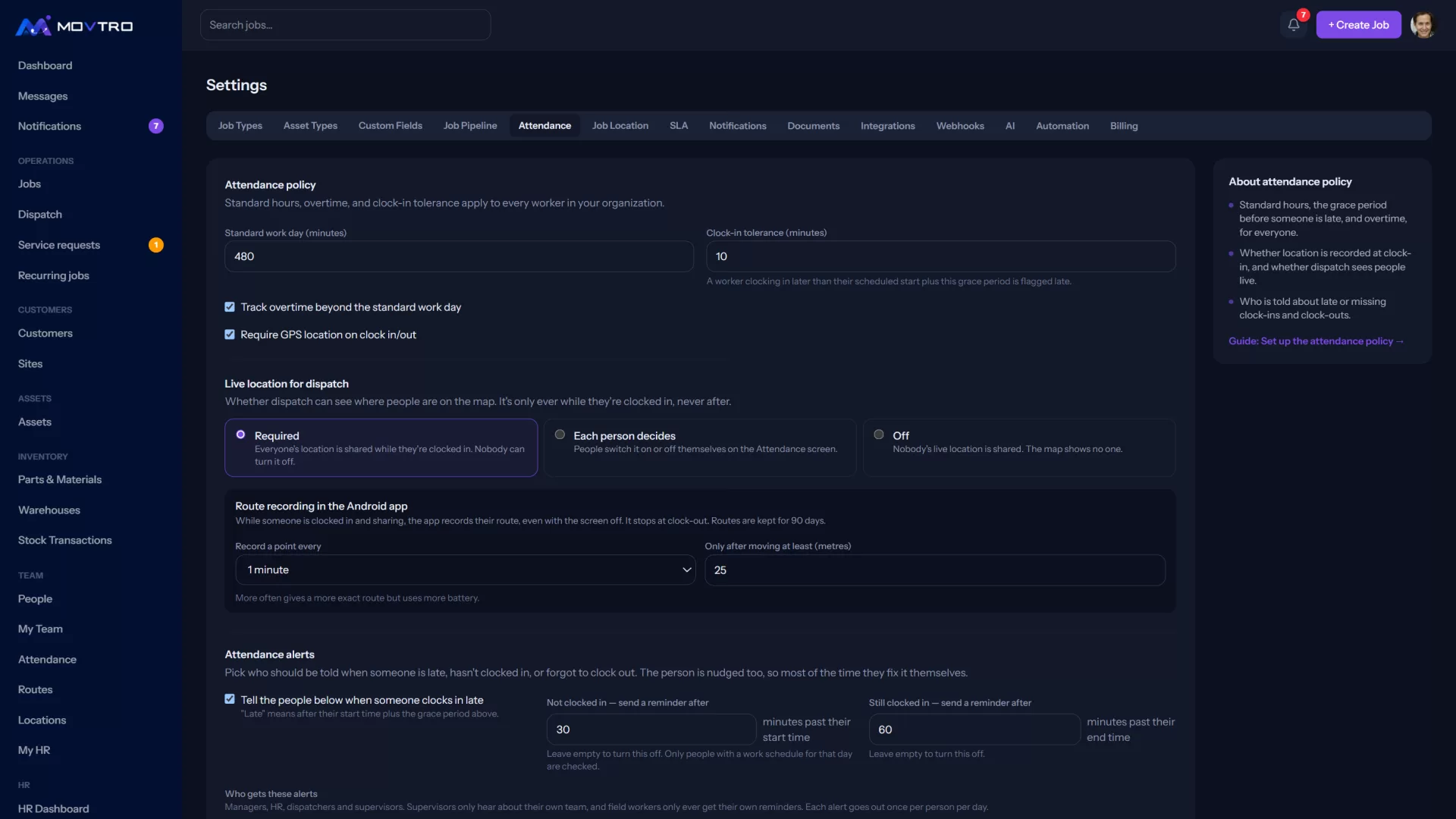
Hours and overtime
- Standard work day (minutes): 480 for an eight-hour day, for example.
- Track overtime beyond the standard work day: tick this to count time past the standard day as overtime.
- Clock-in tolerance (minutes): the grace period. Anyone who clocks in within this many minutes of their start time isn't late.
Location
- Require GPS location on clock in/out: the phone has to provide a location before anyone can clock in or out. The location and its accuracy are saved with each clock-in.
- Live location for dispatch has three options:
- Required: everyone's location is shared while they're clocked in, and nobody can switch it off.
- Each person decides: people switch it on or off themselves on the Attendance screen.
- Off: nobody's live location is shared and the map shows no one.
Live location is only ever shared while someone is clocked in. Before you switch it on, tell your team which option you picked and why.
Route recording in the Android app
With live location on, the Android app records each person's route while they're clocked in, even with the screen off. Under the live location options, set:
- Record a point every: anything from 15 seconds to 10 minutes. Recording more often gives a more exact route but uses more battery.
- Only after moving at least (metres): skips points while someone stays in one place. Routes show on the live map (tap Route next to a name) and are kept for 90 days.
Where people clock in
If people should clock in at a particular place, such as your office, a depot or a customer site where someone is posted, add it as a work location under Where people clock in:
- Click + Add work location and give it a name.
- Set where it is. Tap Use my current location while you're there, pick a site from Copy a customer site, or type in the latitude and longitude.
- Set the Radius (metres). 200 m suits most buildings; use a bigger radius for a large site.
- Tick the people who clock in there, then click Save.
Then choose what happens when someone clocks in away from all their work locations:
- Don't check: they can clock in wherever they are.
- Flag it: the clock-in goes through but is marked Away from site with how far away they were, and your attendance alert recipients are told.
- Block it: they can't clock in until they're inside the radius, and their phone has to share its location.
People with no work location can always clock in anywhere. The phone's accuracy counts in the person's favour, so a rough reading near the edge isn't refused. A clock-in saved on the phone without signal is checked against the place it was made.
Attendance alerts
- The Not clocked in reminder (send a reminder after [minutes] past their start time) reminds people who forgot to clock in. Leave it empty to turn it off. Only people with working hours that day are checked.
- The Still clocked in reminder (send a reminder after [minutes] past their end time) catches forgotten clock-outs.
- Who gets these alerts: pick the managers or supervisors who are told as well as the person.
"Late" means after their start time plus the grace period. Click Save changes when you're done.
Set each person's working hours
Lateness and reminders depend on each person's own hours:
- Go to Team → People and open the person.
- Under Working hours, set a start and end time for each day they work, and mark the other days as Day off.
- Click Save working hours.
Each day has one working window. Movtro doesn't have rotating shift rosters.