How to Create and Assign a Job
Add a job, choose the customer and site, set when it is due, and assign it to a technician from the Jobs page or the dispatch board.
A job is one piece of work at a customer's site. This guide covers adding a job and getting it to the right person.
Before you start
- The customer has to exist already. If they don't, add them first: see how to add customers and sites.
- Anyone on your team can add a job, but only dispatchers, supervisors and managers can choose who does it. (Customers with portal access raise service requests instead.)
Add the job
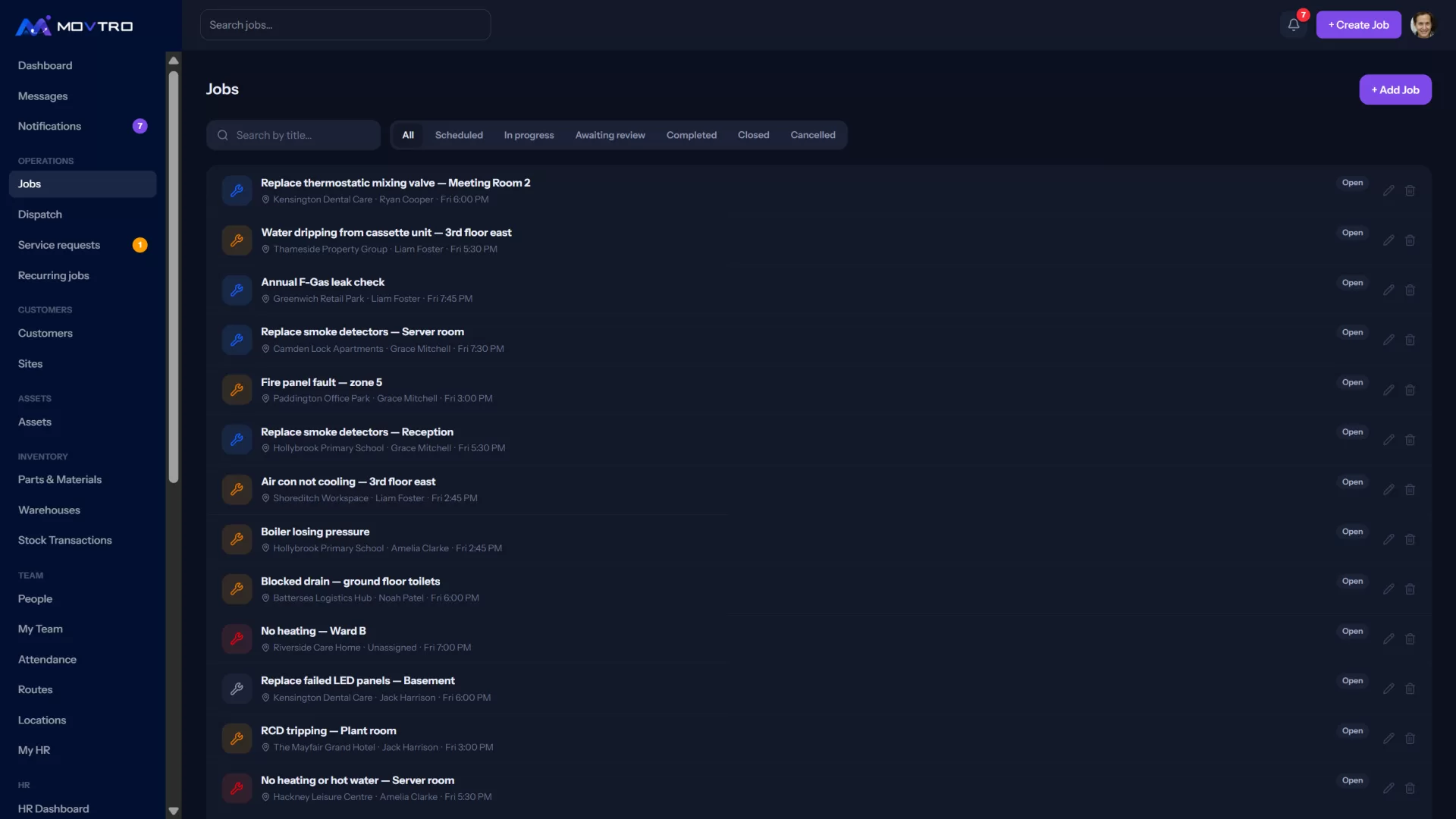
- In the menu, open Operations → Jobs.
- Click + Add Job.
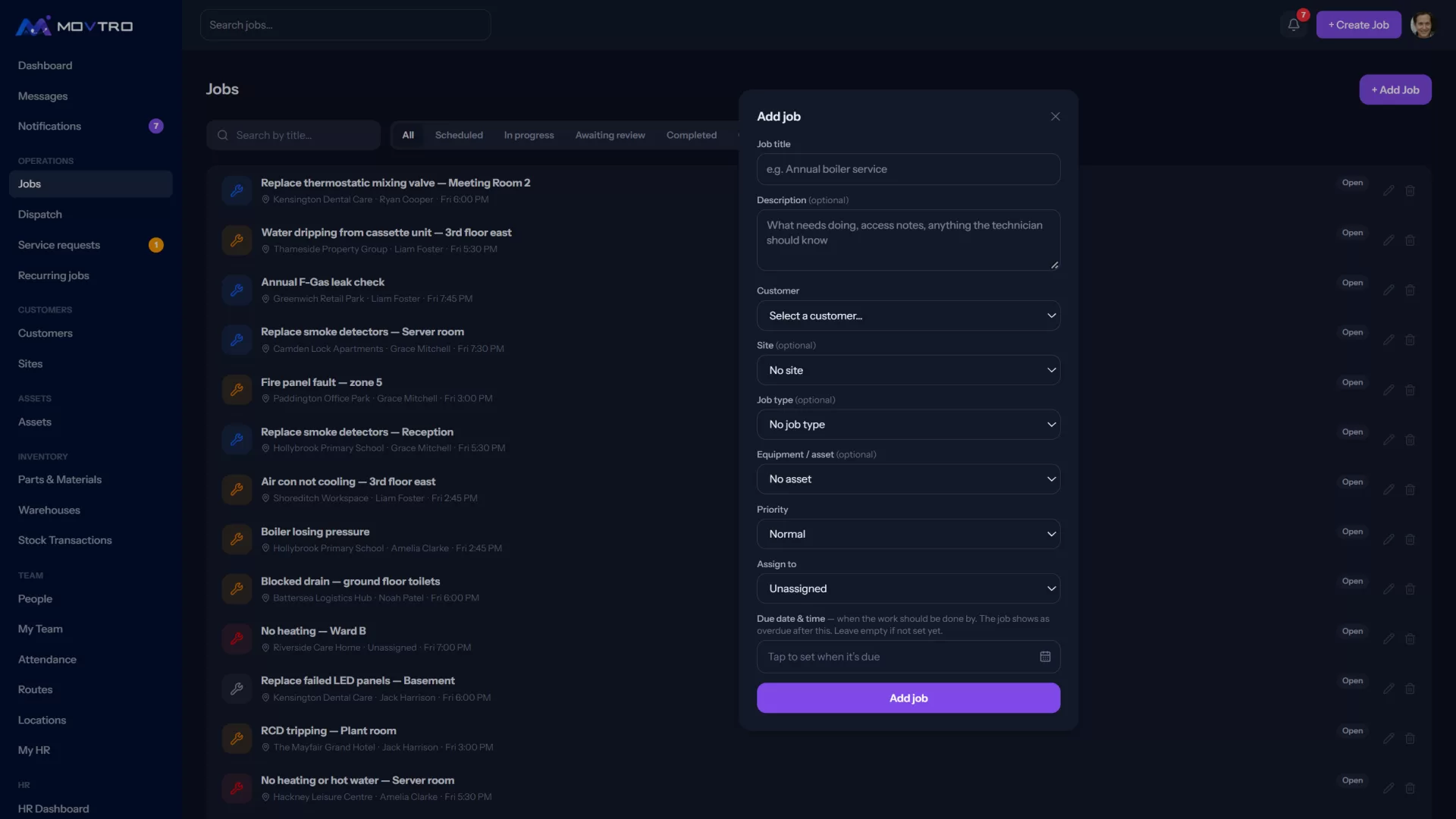
- Fill in the form:
- Job title: the first thing the technician sees, for example "Annual boiler service".
- Description (optional): what needs doing and anything the technician should know.
- Customer: required.
- Site (optional): the customer's location for this job. Pick one whenever you can, because the site's address, map location and access notes then show on the job.
- Job type (optional): the kind of work, chosen from the list under Settings → Job Types.
- Equipment / asset (optional): the unit being worked on, so the job shows up in its service history.
- Priority: Low, Normal, High or Critical.
- Assign to: the technician. You can leave it Unassigned and let dispatch decide later.
- Due date & time: when the job should happen. Jobs with a date appear on the dispatch board for that day.
- Click Add job.
The job opens in the list. If you assigned someone, they get a notification and the job appears on their phone.
Assign or reassign later
There are two places to change who does a job:
- On the job: open it, click Edit job, change Assign to and save.
- On the dispatch board: under Operations → Dispatch, use the drop-down on the job's card. See how to use the dispatch board.
If you are not sure who to send, click Suggest assignee on the job's card on the dispatch board. Movtro suggests a technician based on matching skills, how many open jobs each person has, who is free at that time, and travel time from where they are now. Click Accept to assign them, or Reject to carry on deciding yourself.
Add a checklist
Once the job exists, open it and go to the Checklist tab to add the questions the technician should answer. A question can be a tick, yes/no/N-A, a number with a unit and an expected range, short text, a pick-list or a photo of the step, and you can set a follow-up question to appear only after a given answer. Mark the ones that must not be skipped as required; the job cannot be completed until they are answered. See how to set up job stages and required checklists.
Tips
- Put access details on the site rather than the job. Gate codes, parking and who holds the key belong in the site's access notes, so every future job shows them.
- Use Critical sparingly. If every job is critical, the board stops telling you anything.
- For repeat work such as a quarterly service, set up a recurring job instead of adding each visit by hand.