How Technicians Check In on Site and Complete a Job
For technicians: how to open a job, move it through its stages, answer the checklist, add photos, notes and parts, report problems, get a signature and mark the job complete.
This guide is for technicians and anyone else doing the work on site. All of it works on your phone, and most of it works without signal: the phone saves your changes and sends them when you are back online.
Find your job
Open Jobs for the jobs assigned to you, or My Route for today's stops in order. Tap a job to open it.
The top of the job shows the customer, the site, when it is due, and the site's Access notes (gate codes, parking, who to ask for). Tap Get directions to open the route in Google Maps.
Move the job through its stages
The Job pipeline row shows the stages, such as Traveling, On Site and Work in Progress (your company may have its own names for them). Tap the next stage when you get to it.
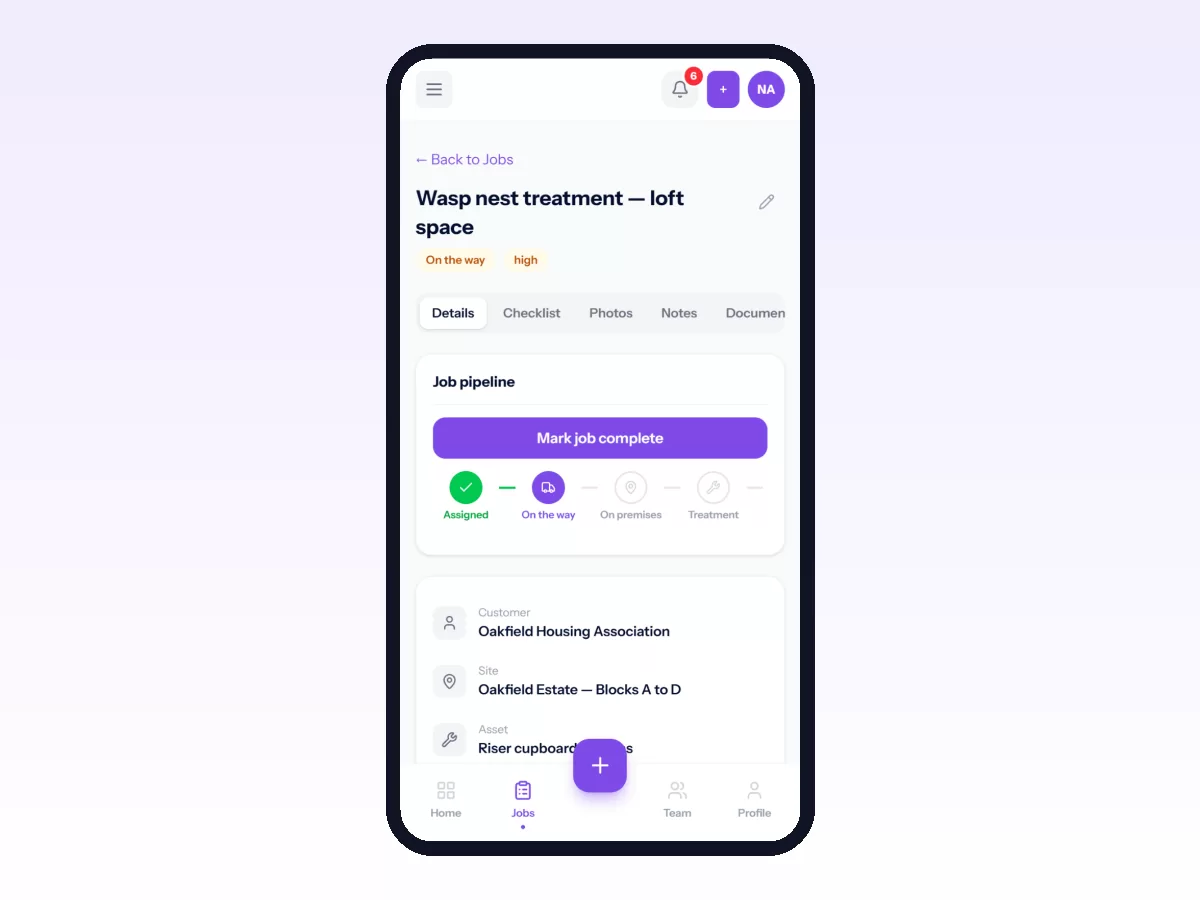
- When you start the work, Movtro records where you are and how far that is from the site. The office sees this on the job.
- Some stages can only be set at the customer's site. If you are too far away the stage won't move, so get closer and try again.
- If your company requires a location for a stage, let the phone share it.
Work through the checklist
Open the Checklist tab and answer each step as you do it. Depending on the question you tick it, choose Yes, No or N/A, type a reading, pick an option, write a few words, or tap Add photo to photograph that step. For readings the expected range is shown, and a reading outside it turns amber. Items marked REQUIRED must be answered before the job can be completed.
Add photos
Open Photos, tap Add photo and choose what it shows: Before, During, After, Damage, Equipment or Proof. The customer and your supervisor look at the before-and-after photos first.
Add notes
Under Notes, write what you found and what you did. Choose Internal only for notes meant for your team, or Customer-visible for anything the customer should read.
Record parts and materials
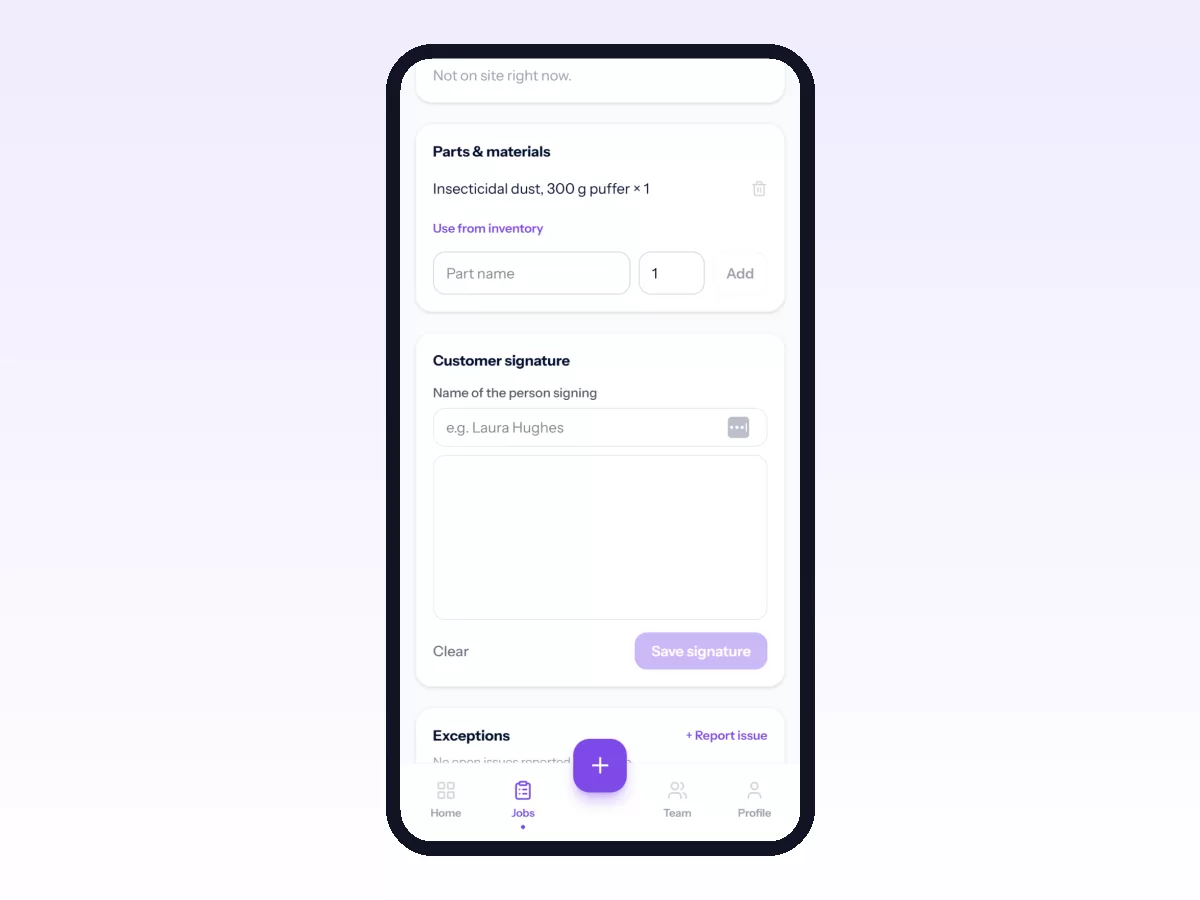
Under Parts & materials, add what you used. Pick the item and answer Taken from which store? (your van or the warehouse) so the stock count stays right. For something not in the list, use free text.
Report a problem
If something stops the job, such as no access, a part you can't get or a safety issue, tap + Report issue. Choose what happened and how serious it is, add details and tap Submit. Your supervisor hears about it straight away, so don't save it for the end of the day.
A reading outside its expected range (a pressure above the allowed maximum, for example) reports a problem on its own as soon as you save it. It is marked Reading out of range and logged in your name. You don't need to report it again, and if you enter a corrected reading that is back in range, the problem resolves automatically.
Get the customer's signature
In Customer signature, type the signer's name under Name of the person signing, then hand the phone to the customer to sign with their finger. Their name appears with the signature on the service report.
Complete the job
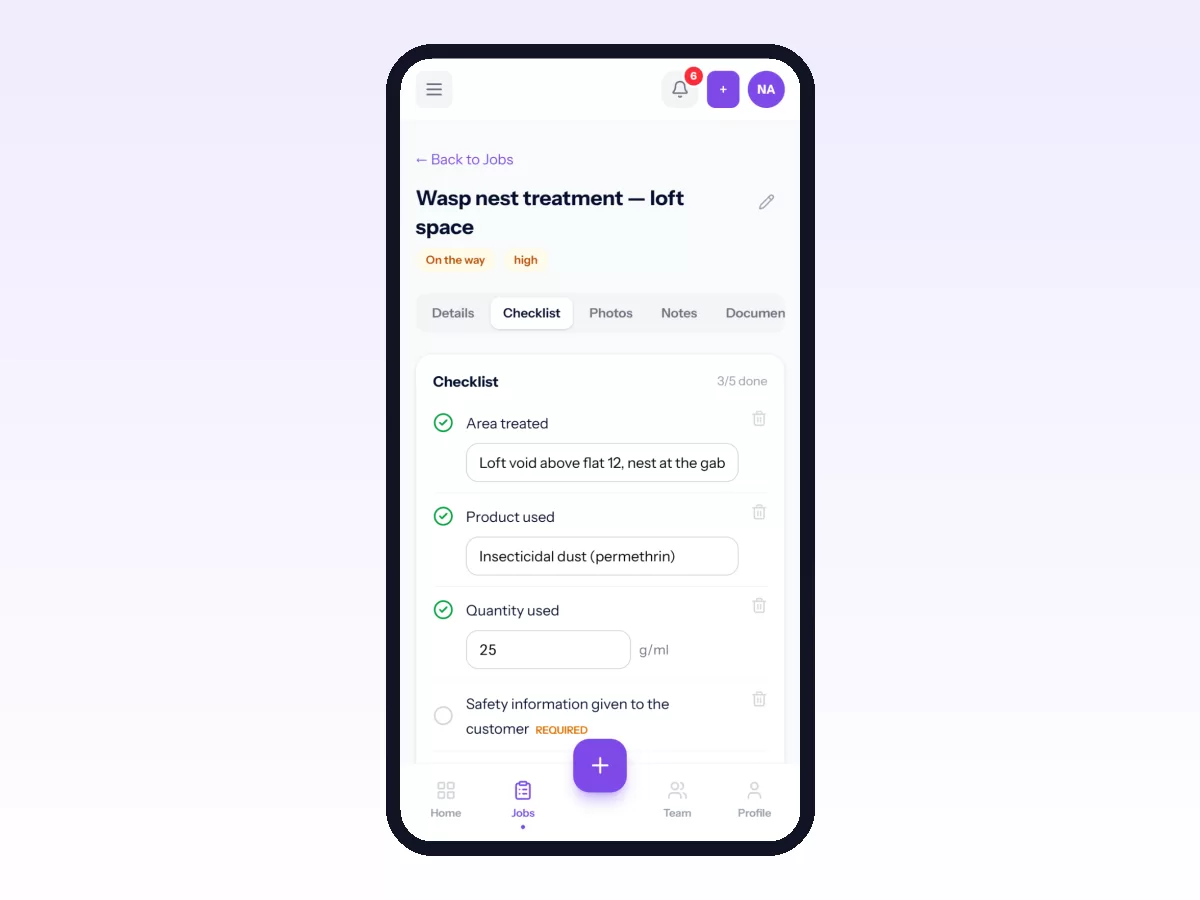
Tap Mark job complete. If you haven't added any photos, Movtro reminds you first, and you can add one or complete without. Anything still missing is listed under Before you can complete this job: unanswered required questions, a photo or the customer's signature if this type of job needs them, or the last stage if your company follows stages in order. The list works without signal too.
Some jobs then go to a supervisor for review. If yours is sent back for rework, it reappears on your list with their comment.
Send the service report
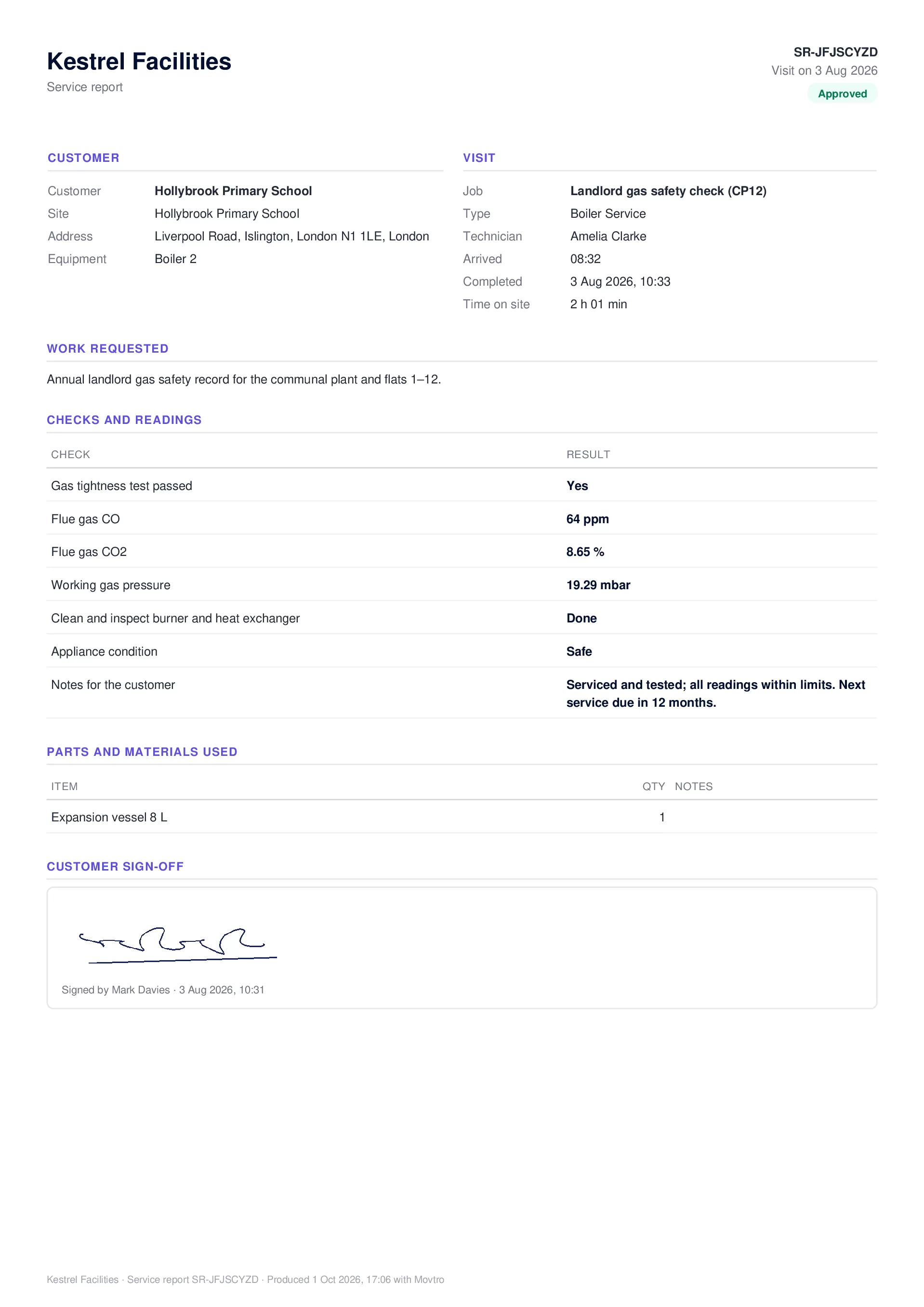
When the job is complete, the Service report card on the job has Download PDF and Email to customer. The report includes the checks and readings, parts used, the notes meant for the customer, photos and the signature.
To email it, tap Email to customer. The customer's email and their portal contacts are ticked already. Untick anyone who shouldn't get it, or use Add another email (up to 5 people in all). Add a message if you want, then tap Send report. Replies come to your email, and the card then shows who the report went to and when.
Your company can also have the report emailed to the customer automatically when a job is done (Settings → Job Pipeline). Jobs that need approval are sent once they are approved, and the card shows when the email went.
Related
Related: Troubleshooting Location, Notifications and Sync · Getting Movtro on Your Phone and Working Offline