Getting Movtro on Your Phone and Working Offline
You can use Movtro on a phone through the Android app from Google Play, the website, or the website added to your home screen as an app. This also covers notifications, location and working without signal.
Field staff use Movtro on their phones for jobs, checklists, photos, clock-in and clock-out. You can get it in three ways, all using the same account and showing the same work.
Choose how to use it
1. The Android app (Google Play)
- On the phone, open Movtro on Google Play, or open Google Play and search for Movtro.
- Tap Install, then Open, and sign in.
2. On your home screen, like an app (Android or iPhone)
You can add Movtro to the home screen straight from the website. It then opens full screen with its own icon and works offline like the app.
- Android (Chrome): open movtro.com, sign in, tap the ⋮ menu and choose Install app or Add to Home screen.
- iPhone (Safari): open movtro.com, sign in, tap Share, then Add to Home Screen.
On an iPhone this is how you use Movtro, because there is no iPhone app in the App Store.
3. In the browser
Open movtro.com in any phone browser and sign in. Everything works, though Movtro is easier to find and quicker to open from the home screen.
Sign in with the same email and password you use on a computer. If you haven't set a password yet, use the invitation email your company sent.
Allow notifications
When Movtro asks to send notifications, tap Allow, so you hear about new jobs, approvals and messages straight away.
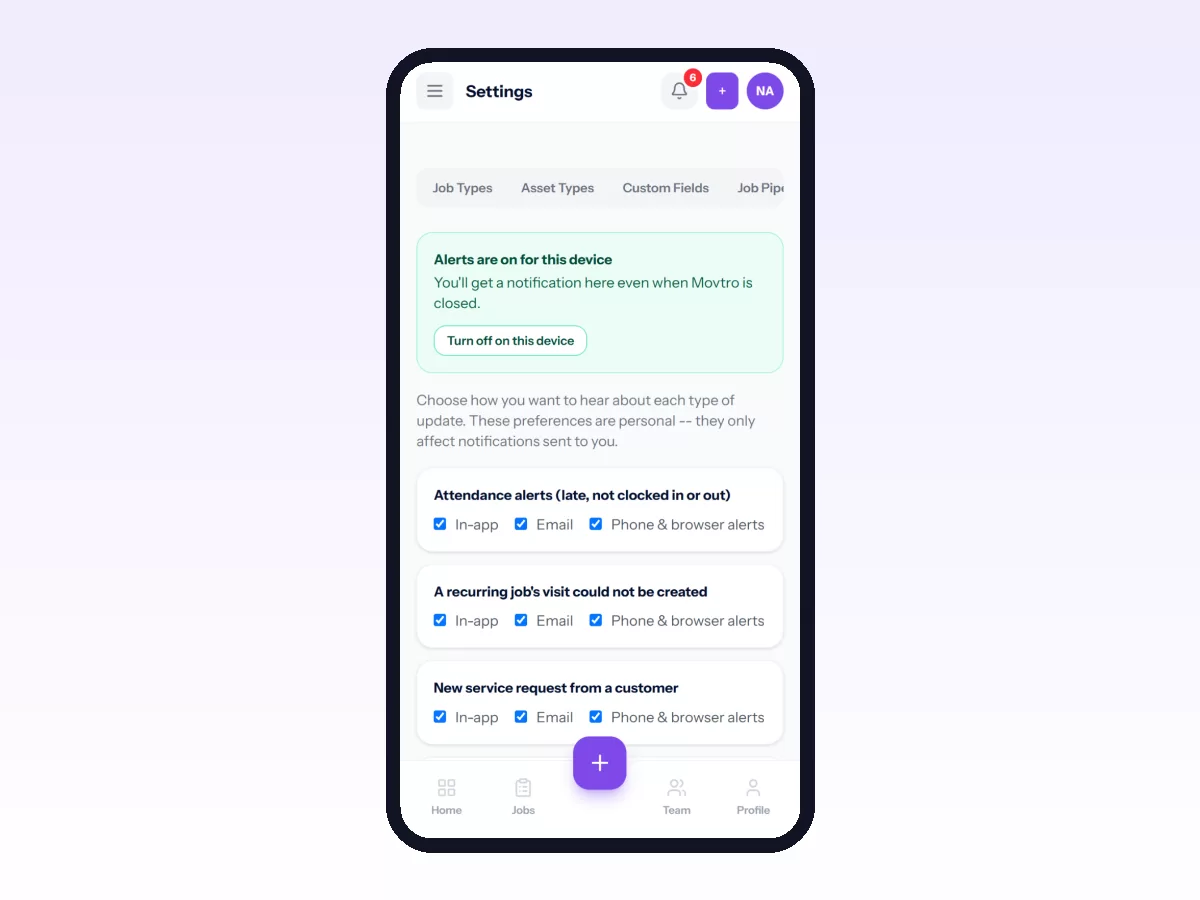
- Android app: if you said no, turn them on under the phone's Settings → Apps → Movtro → Notifications.
- Home screen or browser: allow notifications for movtro.com in the browser's site settings. On an iPhone, notifications only work after Movtro has been added to the home screen.
You choose which notifications you get under Settings → Notifications; see how to choose which notifications you get.
Allow location
Movtro asks for your location when you clock in, when you start work on a job and, if your company uses it, to share where you are while you're clocked in. Choose Allow and, if it's offered, Precise location. Your location is never shared while you're clocked out. See how clock-in and clock-out work.
Working without signal
Basements, plant rooms and rural sites often have no signal. Movtro keeps working in the app, on the home screen and in the browser, as long as you've opened it with a connection at least once on that phone.
- It still opens, and your assigned jobs are there.
- These are saved on the phone and sent later: moving a job through its stages, notes, photos, checklist answers of every kind, and clock-in and clock-out.
- Times stay accurate. A clock-in made offline keeps the time you tapped, not the time it synced.
- Starting or ending a break, and creating new jobs, need a connection.
When something is waiting to send, Movtro says it is saved on this phone and will sync when you're back online. It sends automatically once the signal returns.
While anything is waiting to sync, do not log out, uninstall, clear the app's data or clear the browser's site data.
Keep it working well
- Keep the app updated from Google Play. The home-screen and browser versions update themselves.
- Some phones stop apps in the background to save battery. If notifications arrive late, set battery use to Unrestricted for Movtro (or for Chrome, if you use the home-screen version).
- Photos need storage space, so clear old photos from the phone if uploads fail.