Troubleshooting Location, Notifications and Sync
Fixes for the problems people hit most: location not found, a job that won't move or complete, someone missing from the map, notifications not arriving, and work waiting to sync.
Location
"Finding your location…" never finishes
- Turn on the phone's location (GPS).
- Let Movtro use location, either in the browser's site settings or, for the Android app, in the phone's app settings. Choose precise location if asked.
- If you are indoors or underground, step outside or go near a window. Accuracy gets better after a few seconds outdoors.
- If your company requires location to clock in, you can't clock in until the phone provides one.
A job won't move to the next stage
- "Can only be set at the customer's site": you need to be at the site for that stage. Get closer. Your company sets the allowed distance.
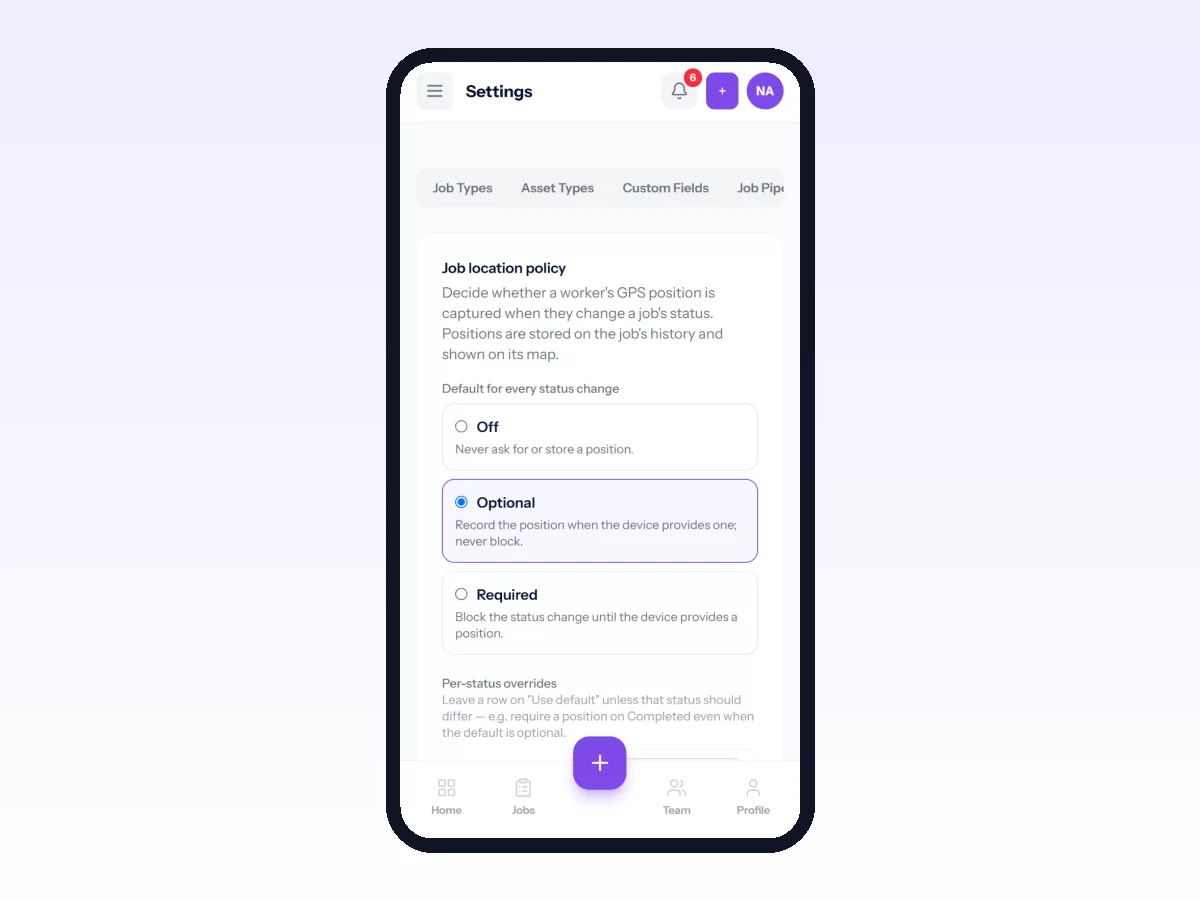
- Your company requires a location for this step: allow location and try again.
- Stages must be followed in order: move through the stages one at a time.
A job won't complete
Make sure every checklist item marked REQUIRED is ticked and the job is on its last stage.
Visits flagged as far from the site when they weren't
The site's map location may be wrong or missing. Check its latitude and longitude under Customers → Sites. See how to add customers and sites.
Someone isn't on the live map
They have to be clocked in, with live location turned on for them. See how to see your team on the live map.
Notifications
Phone or browser alerts don't arrive
- Check your preferences under Settings → Notifications. Phone & browser alerts must be ticked for that notification.
- Allow notifications for Movtro in your browser's site settings, or in your phone's settings if you use the Android app.
- Check the phone isn't on do-not-disturb and that battery saver isn't stopping Movtro in the background.
Emails don't arrive
Look in your spam or junk folder, and check that Email is ticked for that notification. It also helps to add Movtro's sending address to your contacts.
Offline and sync
"Saved on this phone. It will sync when you are back online."
Your work is safe on the phone and goes up automatically when you reconnect. A clock-in keeps the time you actually tapped, whatever time it syncs.
- Don't log out, uninstall the app or clear its data until everything has synced.
- Breaks need a connection, so wait until your clock-in has synced before you start one.
Something still hasn't synced
Open Movtro on a good connection and leave it open for a minute. If it still hasn't gone through, tell your supervisor what you did and when so they can check the record.
Still stuck?
Write down what you were doing, the time and any message on screen, then contact your administrator or the Movtro team through the contact page.