How to Add Customers and Sites, With Access Notes
Add a customer and the places you work for them, pin each site on the map, and write access notes that technicians see on every job.
A customer is who you work for. A site is a place where you do that work: a home, a branch, a building, a tower. One customer can have many sites.
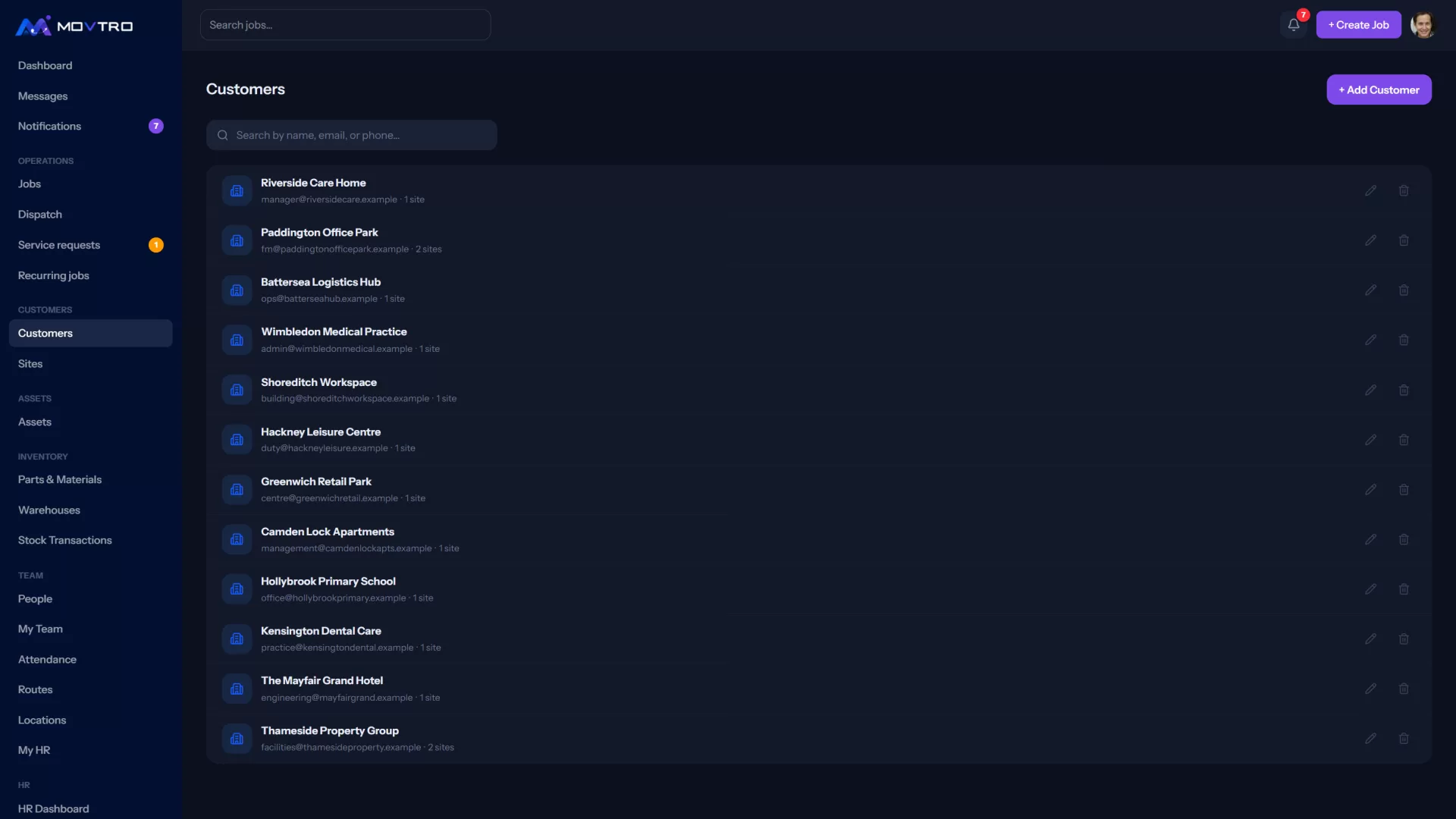
Add a customer
- Go to Customers → Customers.
- Click + Add Customer.
- Enter the customer's name. An email, a primary contact name and a phone number are optional.
- Save.
Add a site
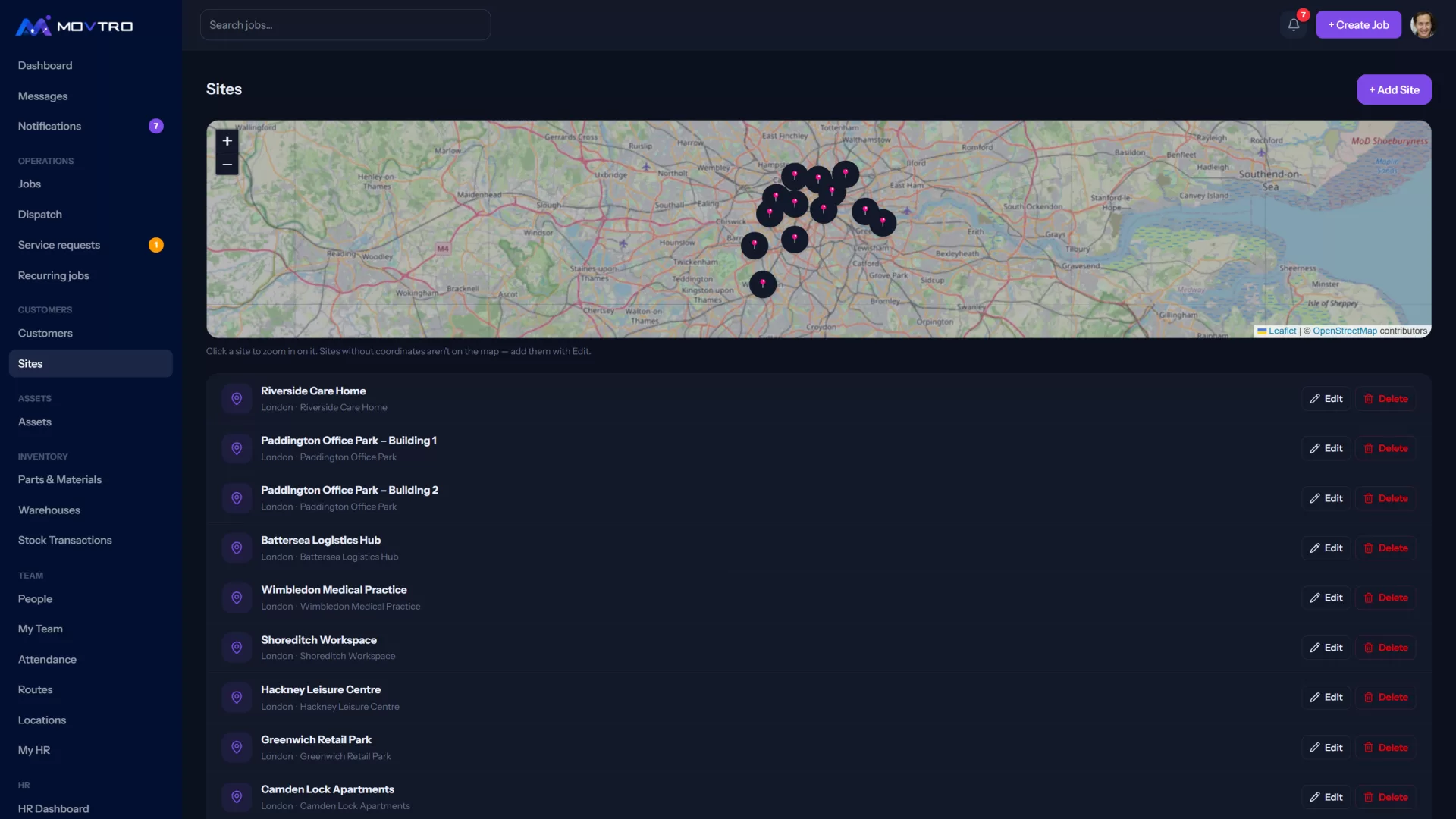
There are two ways to add a site:
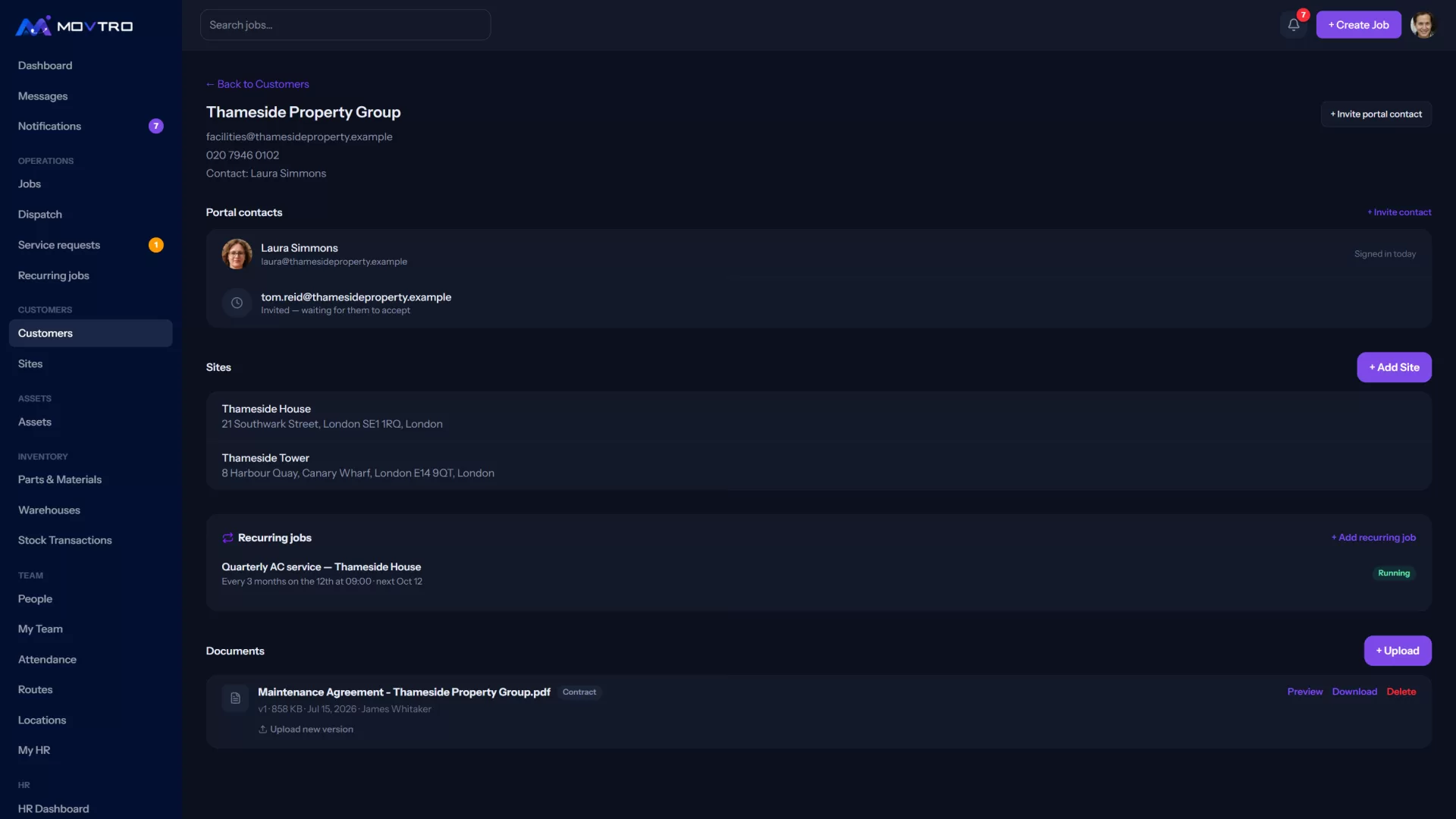
- Open the customer and click + Add Site. The site is linked to that customer automatically.
- Or go to Customers → Sites, click + Add Site and choose the customer.
Then fill in:
- Site name: what your team calls it, for example "Gulberg branch" or "Tower 114".
- Address and City.
- Latitude and Longitude: the site's location on the map (see below).
- Access notes (see below).
Put the site on the map
Latitude and longitude are optional, but they are worth adding. Movtro uses them to:
- show how far from the site each visit started, and flag visits that began far away;
- allow stages that can only be entered at the customer's site;
- estimate travel time between stops on planned routes;
- show the site on the map and give technicians Directions.
To get them, open the site in Google Maps, right-click the exact spot (long-press on a phone) and copy the two numbers it shows. The first goes in Latitude, the second in Longitude.
Sites without coordinates do not appear on the map on Customers → Sites. Click one to add its location.
Write access notes
The technician sees the Access notes on every job and route stop at the site. Put anything there that would stop someone getting in or starting work:
- gate codes and which entrance to use;
- who holds the key, and their phone number;
- where to park;
- times to avoid, or security procedures.
An out-of-date gate code wastes a visit, so keep the notes current.
Invite the customer to the portal
On the customer's page, click + Invite portal contact to invite someone from the customer's side. They can then raise service requests and follow their jobs. See the customer portal for field service.
Also on the customer page
- Recurring jobs for this customer, with + Add recurring job.
- Documents: contracts, drawings, certificates.