How to Set Up Recurring Jobs
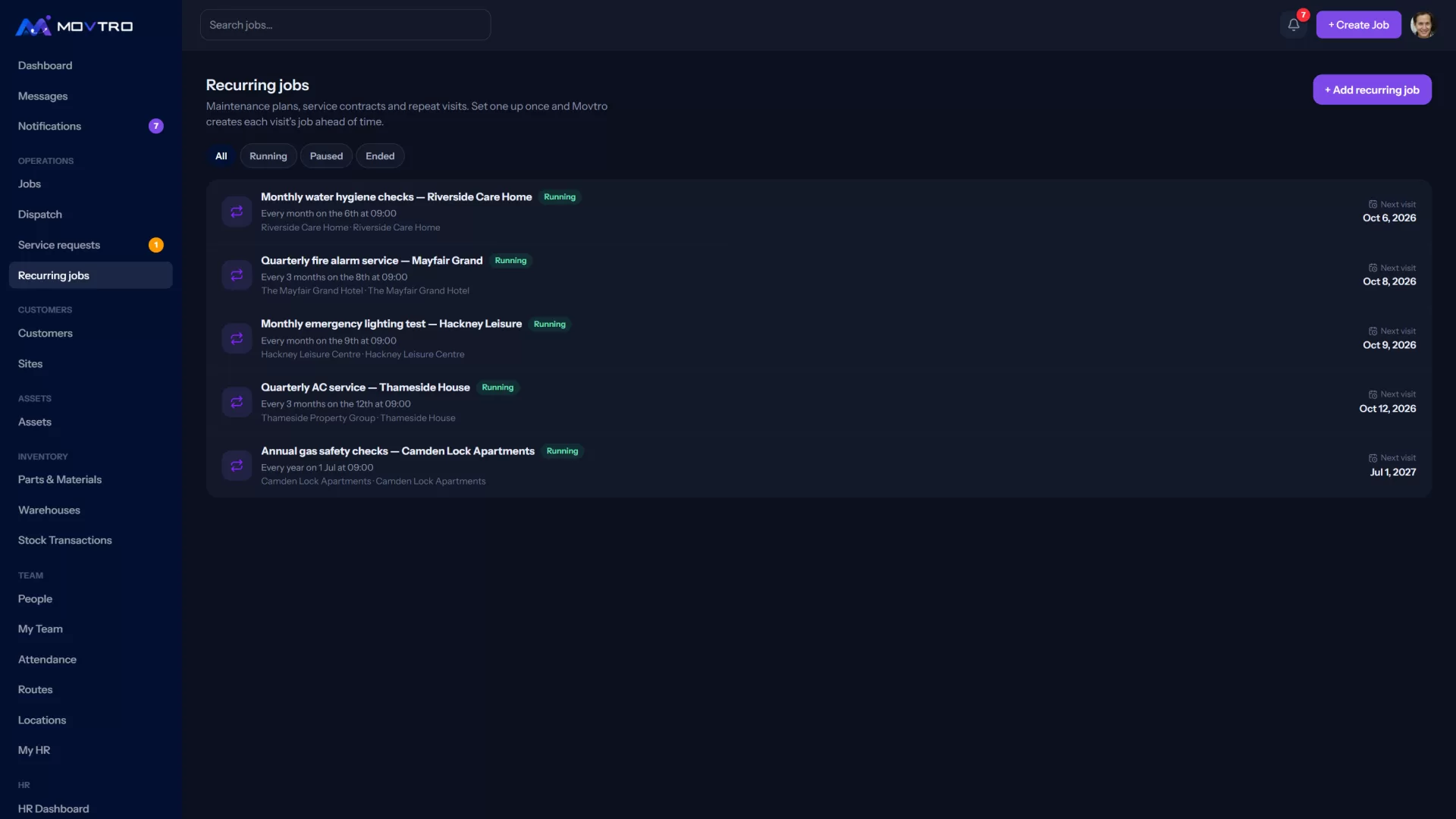
Create a maintenance plan or repeat visit once and Movtro creates each visit ahead of time, on a fixed calendar or counted from the last visit, per asset or as one visit.
A recurring job is a plan that creates real jobs on a schedule, such as a quarterly AC service, a monthly generator check or weekly cleaning. You set it up once, and each visit shows up on the dispatch board and the technician's phone like any other job.
Owners, admins, operations managers and dispatchers can do this. If Recurring jobs isn't in your menu, your role or your plan doesn't include it; see pricing.
Create a recurring job
- Go to Operations → Recurring jobs and click + Add recurring job. You can also start from a customer's or an asset's page, and those details are filled in for you.
- Under What:
- Name: for your own list, for example "Quarterly AC service".
- Job title on each visit: what the technician sees.
- Job type, Priority and Instructions (optional).
- Checklist for the technician: the steps for every visit, for example "Clean filters". Each one is answered as a tick, yes/no/N-A, a reading with an allowed range, short text, a pick-list or a photo. Mark the steps that must be done as required. Leave the checklist empty to use the job type's checklist instead (see job stages and checklists).
- Under Where:
- Customer: required.
- Site (optional).
- Assets serviced on each visit (optional): the units the plan covers.
- If you choose two or more assets, pick How each visit becomes jobs. One job per asset makes a separate job for each unit; One job for the whole visit makes one job with a checklist line for each unit.
- Under Who: the Technician who usually goes, or Leave for dispatch to assign.
- Under When:
- Count visits: On a fixed calendar keeps the same dates whatever happens; From the last visit counts the next one from when the previous visit was finished.
- Every [number] [Days, Weeks, Months or Years]. For weeks, choose the days. For months, choose the day or Last day of the month.
- Starts, and Contract ends (optional).
- Time (optional).
- Create each visit how many days ahead: how early the job appears, so dispatch has time to plan it.
- Check the preview. Next visits lists the dates Movtro will use.
- Click Create recurring job.
What happens next
- Movtro checks every hour and creates each visit once it falls inside the days-ahead window, copying the checklist onto it.
- The assigned technician gets a notification.
- Past dates are never back-filled, so starting a plan with a date in the past won't flood the board.
- A visit that isn't finished by its due date shows as Overdue on the plan and on the job.
Manage a recurring job
Open it from Operations → Recurring jobs:
- Edit: changes apply to visits that haven't been created yet. Jobs already created stay as they are.
- Create next visit now: creates the next visit straight away.
- Pause and Resume: nothing is created while the plan is paused, and missed dates aren't caught up afterwards.
- End this recurring job: stops future visits and keeps the history.
- Delete: only possible before the plan has created any visits.
If a visit couldn't be created, a banner on the plan explains why.