How to Use the Dispatch Board
See the day's jobs by technician, schedule work that has no date, reassign in one click, get a suggested technician and plan each person's route.
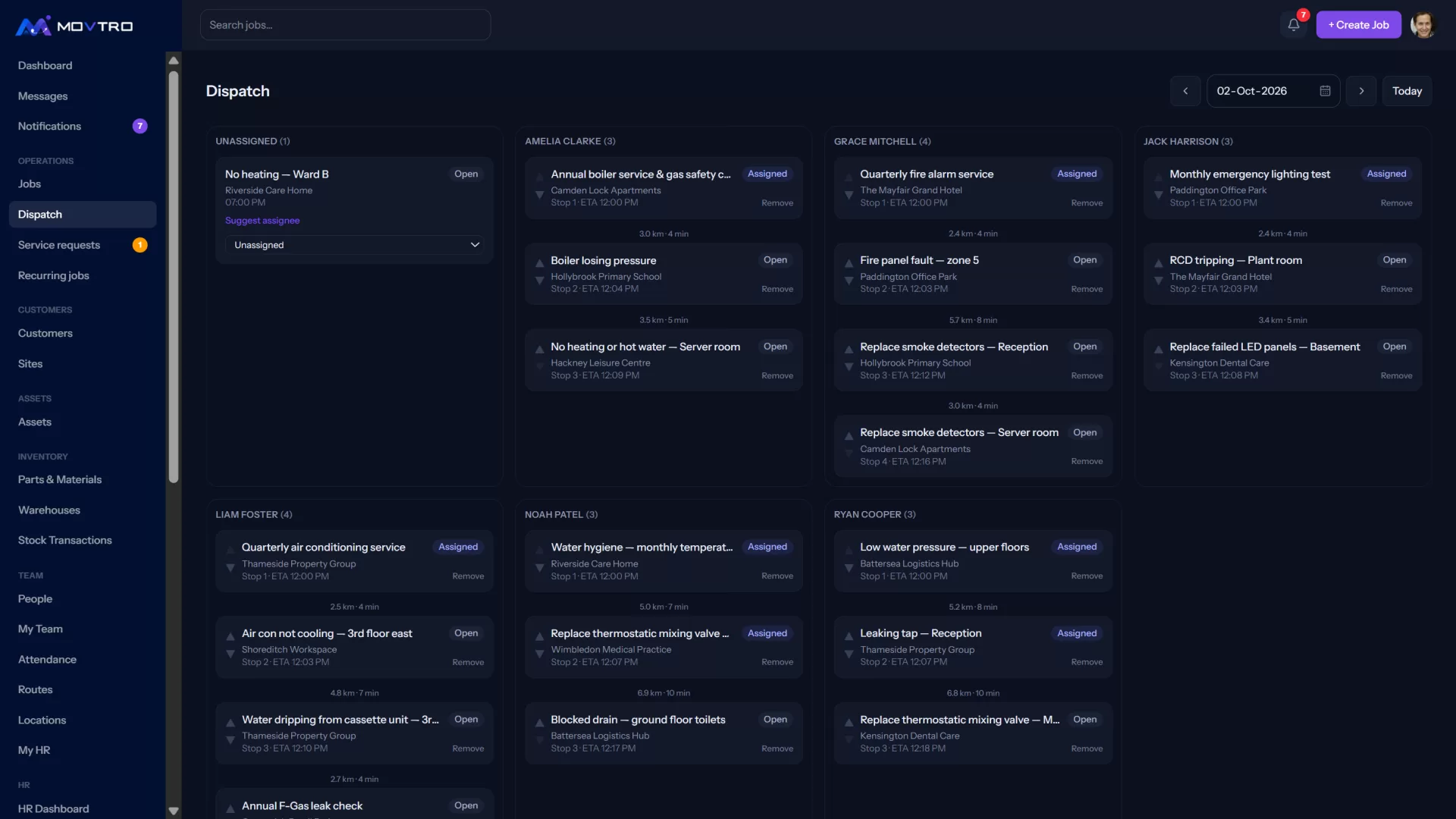
The dispatch board shows one day's work, arranged by who is doing it. Dispatchers and supervisors use it to plan the day and adjust it as things change.
Dispatchers, supervisors and managers can use the board. Technicians see their own work under Jobs and My Route instead.
Open the board
Go to Operations → Dispatch. To change the day, use ← Prev, Today, Next → or the date box.
What you see
- Unscheduled jobs along the top, which are jobs with no date yet.
- A column for each technician, plus an Unassigned column, holding that day's jobs.
- Job cards showing the title, customer, time and current stage.
The cards update as technicians move jobs on from their phones, so you don't have to ring round.
Schedule an unscheduled job
On a card under Unscheduled jobs, click Schedule for [the day you are viewing]. The job moves onto the board for that day.
Assign or reassign
Each card has a drop-down listing your team. Choose a name to assign the job to that person, or choose Unassigned to take it off someone. The technician is notified.
Get a suggested technician
Click Suggest assignee on a card. Movtro recommends someone based on:
- matching skills and skill level;
- how many open jobs each person has;
- who is available at that time;
- travel time from their live location.
The suggestion explains why it picked that person. Click Accept to assign them, or Reject if you know better. Either way, the decision is kept on record.
People on approved full-day leave or a holiday are left out, and the suggestion tells you so. It does not check half-day leave or certifications, so watch those yourself.
Plan a technician's route
At the bottom of a technician's column, click Plan route to put the day's jobs in order as a route. Use Move up and Move down to change the order, + Add to route for jobs handed out later, and Remove to take a stop off. Each stop shows the estimated distance and travel time from the one before, and an expected arrival time. See how to plan a technician's route.
Open a job
Click a job's title to open it and see its stages, checklist, photos, notes, parts, signature and any problems reported.
Tips for a calmer day
- Plan tomorrow during the afternoon, and leave room for urgent calls.
- Check Unassigned first thing. Anything there is work nobody owns.
- Keep critical priority for real emergencies.