How to Plan a Technician's Route
Turn a technician's jobs for the day into an ordered route with travel estimates and arrival times. You can reorder the stops and give the technician turn-by-turn directions.
A route is one technician's jobs for one day, in the order they'll do them. Planning it cuts down on driving and gives everyone an expected arrival time for each stop.
Dispatchers, supervisors and managers can plan routes. Technicians see their own route under My Route.
Plan a route
- Check the jobs are assigned to the technician and scheduled for that day. See how to use the dispatch board.
- Go to Operations → Dispatch and pick the day.
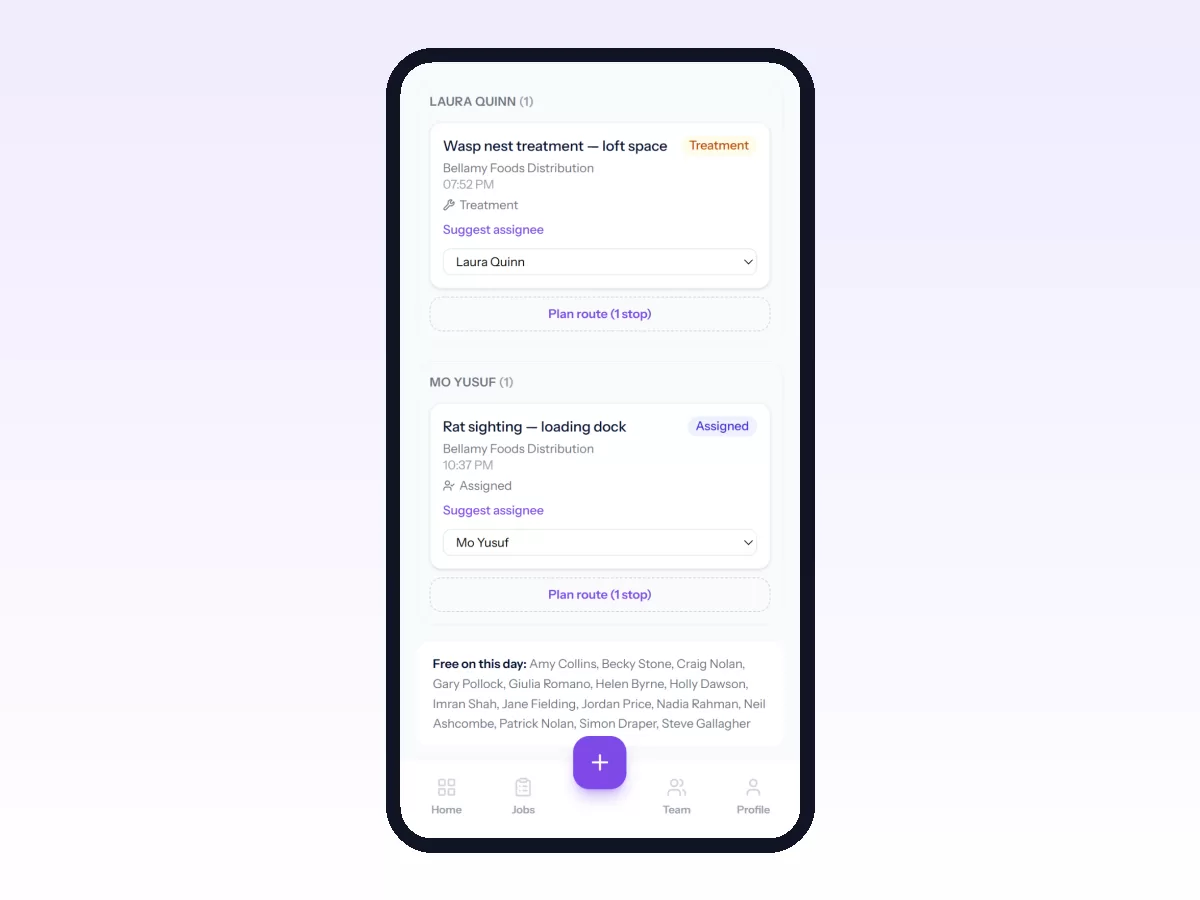
- Click Plan route at the bottom of the technician's column. The button shows how many stops the route will include.
- The jobs appear as numbered stops. Use Move up and Move down to get them in the right order.
Change a planned route
- To add a job: anything given to the technician after the route was planned shows under Not on the route yet. Click + Add to route on a job to add it as the last stop, or Add all to add every one of them, then move it into place.
- To take a job off: click Remove on the stop. The job stays assigned to the technician and goes back under Not on the route yet.
Travel estimates and arrival times are recalculated after every change.
Read the estimates
For each stop Movtro shows the distance and travel time from the previous stop (for example "4.2 km · 12 min") and an expected arrival time.
The estimates are straight-line distances at an average speed. That's good enough for ordering stops and giving customers a window, but they know nothing about roads or traffic, so real journeys usually take longer. They also need the site's map location; a stop without one shows Distance unknown. See how to add customers and sites.
Movtro doesn't pick the order for you. With a handful of stops, which is what most teams have, a sensible order worked out by hand is close to the best you could get. Start near home or the first appointment, work outwards and back, and put fixed appointments first.
What the technician sees
Under My Route the technician sees their stops in order, with each site's Access notes. The Directions and Open in Google Maps links hand off to the Maps app for turn-by-turn navigation with live traffic.
View anyone's route
Managers get Team → Routes in place of My Route, showing every route on a chosen day.