How to Set Up Job Stages and Required Checklists
Name the stages your jobs move through and decide whether they must be followed in order. You can require the technician to be on site for a stage and add checklist items that must be done before a job can close.
Every job moves through the same stages. The standard ones are Assigned, Traveling, On Site, Work in Progress, Completed, Awaiting Review and Closed, and an industry template renames them for your kind of work (visit stages for a pharma team, for example). You decide what they're called, what order they come in and what has to be true before a job moves on.
Owners, admins and operations managers can do this.
Open the job pipeline
- Go to Administration → Settings.
- Choose the Job Pipeline tab.
Rename, reorder and add stages
- Rename a stage to whatever word your team uses.
- Use Move up and Move down to change the order.
- Pick an icon for each stage. Technicians see these on the job.
- To add a stage, type a name in New stage name and choose which system state it belongs to. Reports and supervisor screens group stages by system state, so a stage you call "On the way" still counts as travelling.
- On a stage you've renamed, set This stage means to On the way for travelling, Arrived for reaching the site, or Doing the work. Movtro uses this to record when the technician set off and when they arrived, whatever the stage is called.
- Delete any stage you no longer need.
Keep the list short. A stage is only worth having if someone does something differently because of it.
Make stages follow in order
Tick Stages must be followed in order if every job should move forward one stage at a time. With this on, Mark job complete only works from the last stage. Going back a stage is always allowed. Only turn it off if your team really does skip stages.
Require the technician to be on site
For a stage like "On Site", tick Only at the customer's site on that stage. A job can then only move into it when the technician's phone shows they're at the job's site. Set how close counts as on site in Counts as "at the site" within (in metres; 200 is a good starting point in towns).
This only works for sites that have a map location. Sites without coordinates skip the check, so add latitude and longitude to your sites. See how to add customers and sites.
Decide what happens on rework
Under When a job is sent back for rework, choose one of:
- Start the work stages again: the technician goes through each stage again. This suits teams where rework means a new visit.
- Pick up where the technician left off: the job returns to the stage it was completed from. This suits quick fixes on the same visit.
Give each job type its checklist
Set up a checklist once for each job type, and every new job of that type starts with it.
- Go to Administration → Settings → Job Types and click Checklist next to the type.
- Click Add checklist item for each step and choose how it's answered:
- Tick: done or not done.
- Yes / No / N/A.
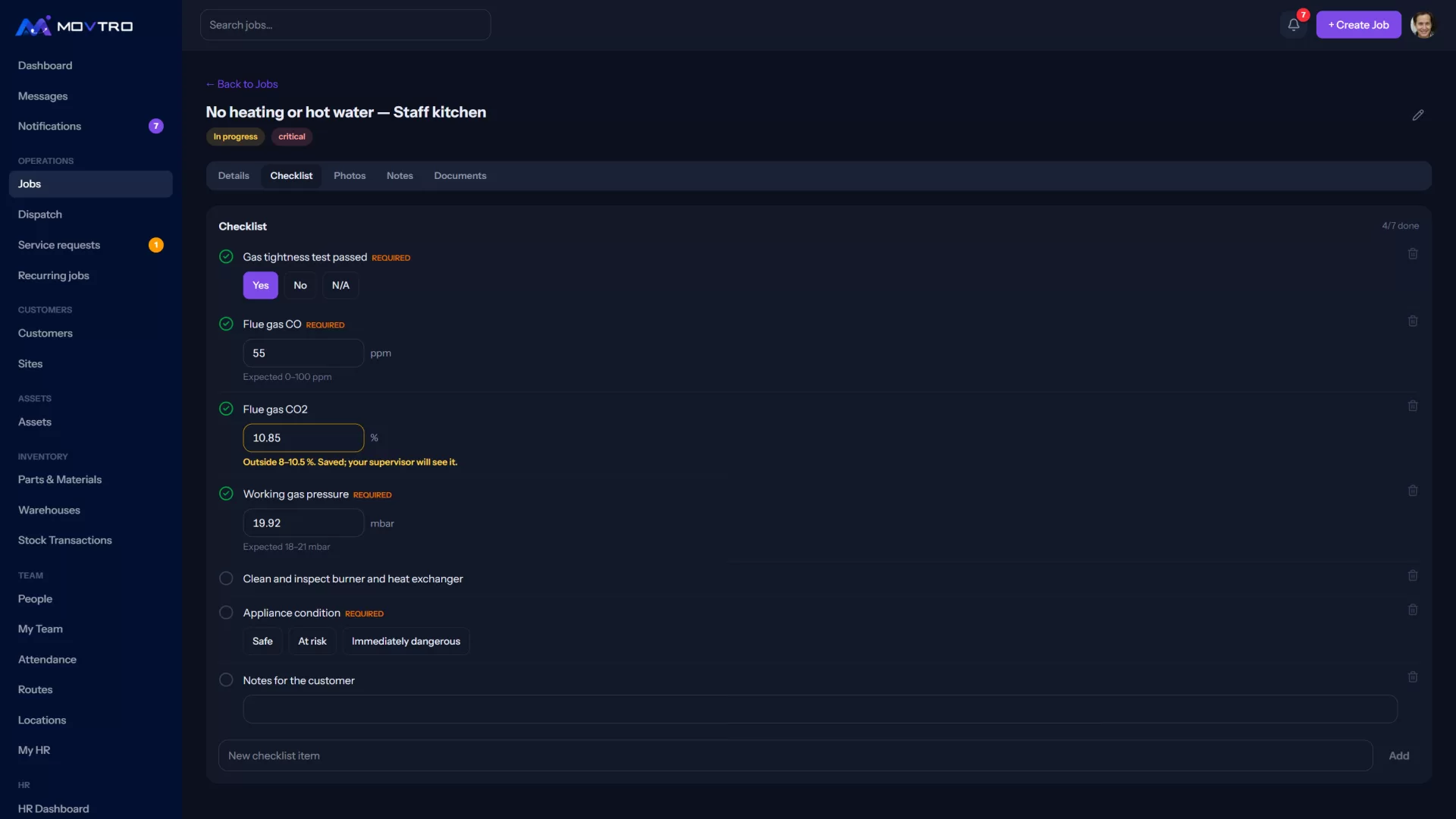
- Number: a reading, with a unit and optional lowest and highest allowed values. Readings outside that range are flagged in amber for whoever reviews the job.
- Short text: a few words.
- Pick one: one option from a list you write, one option per line.
- Photo: at least one photo of that step.
- Tick Required for steps that must never be skipped.
- Under Before a job of this type can be completed, choose whether it needs at least one photo and the customer's signature.
- Click Save checklist.
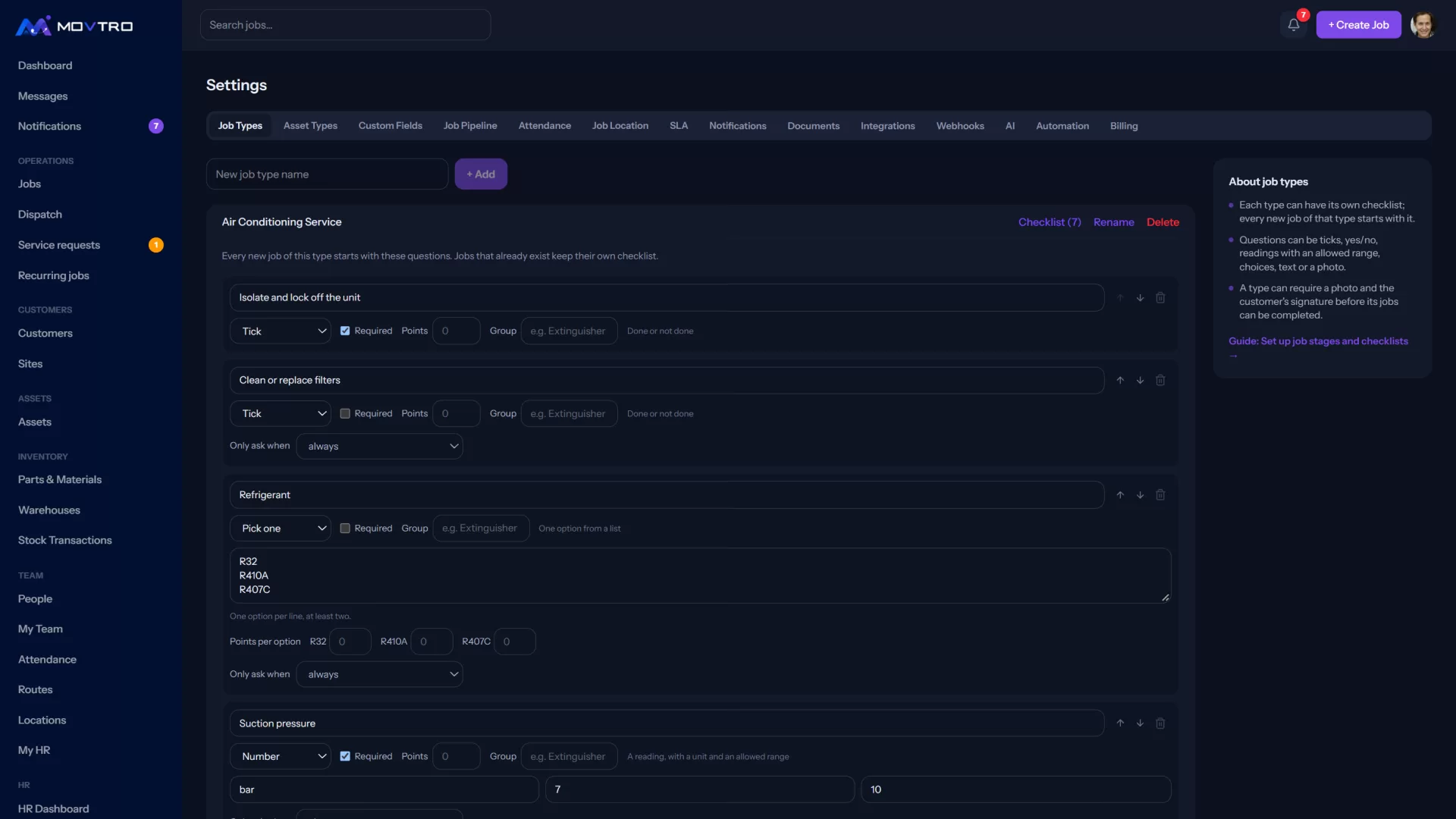
Jobs that already exist keep their own checklist, and changes apply to new jobs. A job with no checklist yet picks up its type's checklist when you give it that type. A recurring job can have its own checklist, built the same way; if it doesn't, its visits use the job type's.
You can make a follow-up question appear only after a particular answer. Under the question, set Only ask when to an earlier tick, yes/no/N/A or pick-one question and the answer that should bring it up. For example, ask Defect details only when Defects found is Yes. On the job, the follow-up stays hidden until that answer is given, isn't required while hidden, and is left off the service report.
To score each job, give questions Points. A tick, a Yes, a reading in range or a photo earns the points, and a pick-one question earns whatever its chosen option is worth (set Points per option). N/A leaves a question out of the total. Set a Pass mark on the job type and each job shows its score and whether it passed, on the job, in the customer portal and on the service report.
For repeating groups, give several questions the same Group name, such as Extinguisher. The technician can then tap + Add another extinguisher on the job to get a fresh set of those questions for each one they check. Each set keeps its own follow-up conditions, and the service report and the checklist answers report label them Extinguisher 1, Extinguisher 2 and so on.
A job can't be marked complete while a required question is unanswered, or without the photo and signature its type asks for. You can still add an extra step to a single job from its Checklist tab. Write each step as a specific action ("Photograph the serial plate") rather than an opinion ("Unit OK?").
Editing job type checklists is for owners, admins and operations managers. Job type checklists and typed questions are part of the Operations plans, and if your plan doesn't include them, Movtro tells you when you save. Tick and photo steps can be added to a single job on every plan. See pricing.
Record location on stage changes
Separately, Settings → Job Location controls whether the phone's position is recorded when a job changes state: Off, Optional (record it when the phone provides one) or Required (block the change until it does). Only an owner or admin can change this setting.
Related
- Custom fields, your own words and industry templates
- Setting up your first job workflow: the thinking behind a good workflow
- How technicians check in on site and complete a job