How to Set Up Your First Job Workflow
Six job statuses worth having, how to write a checklist technicians will actually fill in, and how to agree what "completed" means before it turns into an argument.
A job workflow is the set of statuses a job moves through from the moment it's raised to the moment it's closed. When it's right, the office, the technician and the customer all know what's happening without having to ask. When it's wrong, you end up with fourteen statuses nobody can tell apart.
This guide goes through building your first one in Movtro, along with the judgement calls, which matter more than the clicking.
Start with the statuses you can defend
It's tempting to model every detail of your operation. Don't. A status is only worth having if somebody does something differently because of it.
A workable starting set:
- Draft: being written, not yet real work.
- Scheduled: has a date and an assigned technician.
- In progress: the technician has started.
- On hold: waiting on a part, an approval or access to the site.
- Completed: work finished, waiting for review.
- Closed: reviewed, signed off and done.
That's six. If you're about to add a seventh, ask who will change what they do because of it. If the answer is "nobody, it's just useful to know", put it in a note or a field.
The one people forget
On hold is the status most teams leave out and most often regret. Without it, blocked jobs sit in "in progress" for a fortnight and your dispatch board gives you the wrong picture. With it, you can answer the question that matters on a Monday morning: what is stuck, and what is it waiting for?
Step 1: Create the job type
Job types let one workflow serve different kinds of work. A planned maintenance visit and an emergency callout follow the same statuses, but you can tell them apart on the board and in reports.
Start with one, for whatever work fills most of your week. Running fifty real jobs through one type will teach you more than designing six types on paper.
Give it a clear name your technicians would actually say out loud ("Annual boiler service", not "PM-TYPE-1"). Everyone sees that name on the board, on the phone and in every report.
Step 2: Write the checklist
The checklist decides whether you get usable job data. Two rules:
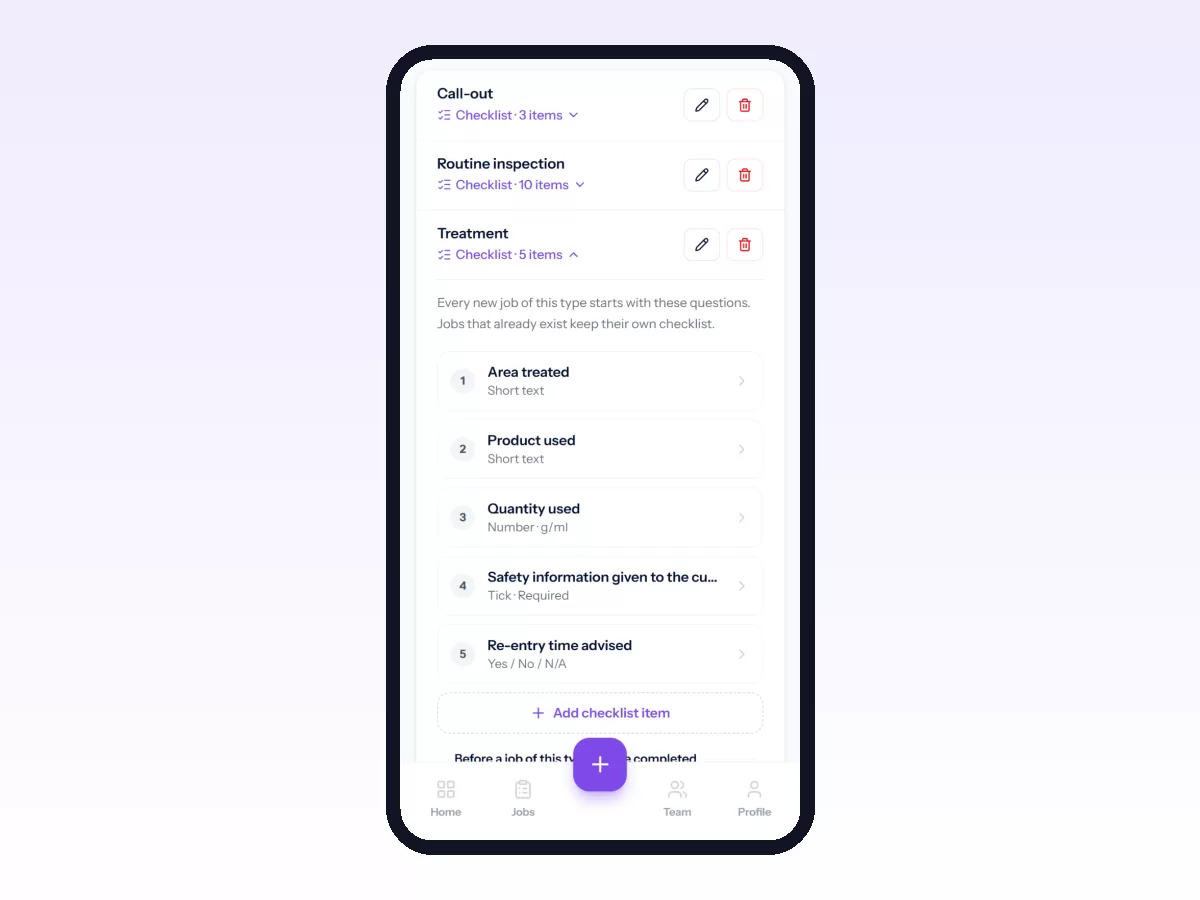
Ask only what you'll use. Every item a technician has to tick is time away from the work, and an item nobody reads teaches them the checklist doesn't matter.
Write each item as a specific action rather than an opinion. "Photograph the serial plate" is better than "check condition of unit", and "Note the pressure reading" is better than "working OK?". A specific step has either been done or it hasn't, while a vague one gets ticked either way.
A solid first checklist for a maintenance visit:
- Photograph the equipment before work
- Confirm the serial number
- The three or four checks that make up the service, one item each
- Log the parts used
- Photograph the equipment after work
- Get the customer's signature
Mark the items that must never be skipped as required. A job can't be completed while a required question (a tick, a reading, a text answer or a photo) is unanswered. Photos attach to the job, the signature is captured on the technician's phone, and parts go in the job's parts list, which draws down your stock if you use inventory. Checklists belong to each job, so add them when you create it, or set them once on a recurring job so every visit starts with them.
Step 3: Decide who assigns
There are two models, and you should choose one on purpose:
- Central dispatch, where a dispatcher assigns everything. This works best when work is unpredictable, skills vary or the promises to customers are tight.
- Self-assignment from a queue, where technicians take the next suitable job. This works best when the work is uniform and the team is experienced.
Most teams start with central dispatch and relax it later. Going the other way and taking self-assignment away is much harder.
Step 4: Set what "completed" means
This step usually gets skipped, and it's the one that causes arguments three months in.
Write down the exit condition. For example: a job may be marked completed when the checklist is filled, at least one after-photo is attached, parts used are recorded, and the customer has signed.
Then have the system enforce as much of that as it can, and stick to the rest yourself. In Movtro, required checklist items stop a job being completed early, and a stage can require the technician to be at the site before the job moves into it. If nobody can bill from a "completed" job, it isn't really completed.
Step 5: Run it for two weeks before changing anything
Your first workflow will be slightly wrong, which is normal. The mistake is changing it on day three, because then you never find out whether the original was wrong or just unfamiliar.
Run it for two weeks and keep a list of complaints without acting on each one as it comes in. Then read the list. The same two or three things will keep coming up, and those are your real problems. The rest was noise.
What to look at after a month
- Jobs that sat in one status too long. This is usually a handoff nobody owns.
- Checklist questions left unanswered. Either the step is pointless or the wording is unclear. You can fix either one, but don't ignore it.
- Jobs reopened after closing. The exit condition is too loose, or review is happening too late.
- How long each kind of job really takes. Compare it with the time you book for it, because better dispatching can't rescue a schedule built on the wrong durations.
Next steps
Once one job type is running cleanly, add a second, and don't just copy the first. The second type is where you find out which parts of your workflow really apply to everything.
After that, look at assigning the right technician and at route optimization to tighten up the schedule itself.
Related: How to Digitize Field Operations in 30 Days · How to Set Up Job Stages and Required Checklists · How to Create and Assign a Job