How to Share Job Progress With Customers
Invite customers to the portal, where they raise service requests, follow each job, see the technician on the way and approve finished work. Also covers how your team handles their requests.
The customer portal gives each customer their own view of the work you do for them. They can raise requests, follow jobs as they happen and approve finished work there, without phoning your office.
Invite a customer contact
- Go to Customers → Customers and open the customer.
- Click + Invite portal contact and enter their email.
They get an invitation to set a password. A portal contact only ever sees their own company's jobs, sites, assets and documents, and never anyone else's.
What customers see
In the Customer Portal, customers have:
- Dashboard: active jobs and pending requests at a glance.
- Service Requests: the requests they've raised and the status of each.
- Active Job: each job's progress through Scheduled, Assigned, Travelling, Arrived, In Progress and Completed. While the technician is travelling, they see Your technician is on the way with the technician's location on a map.
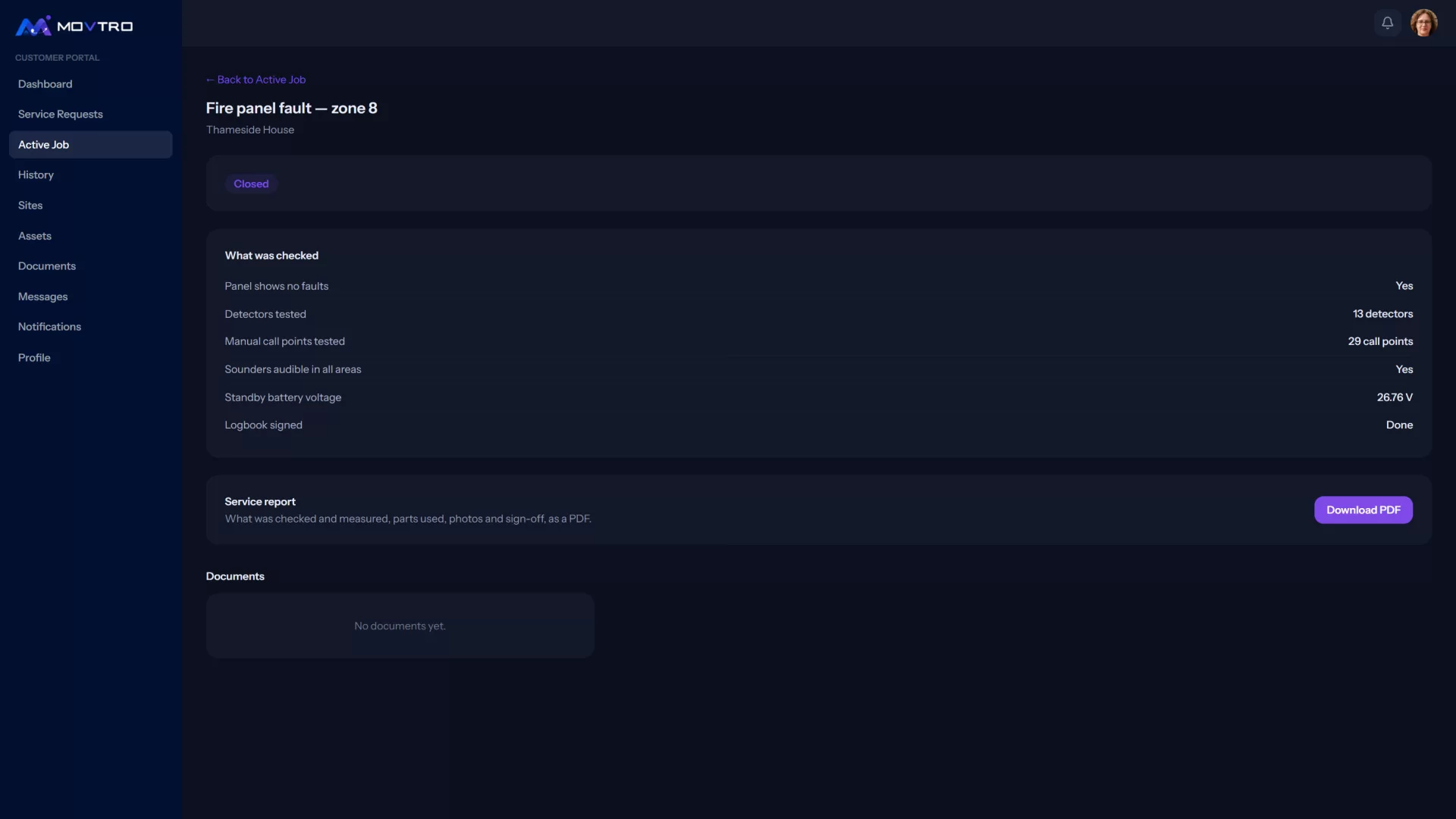
- History: finished jobs, with what was checked and measured, photos, the signature on file and the service report as a PDF (Download PDF on the job).
- The Sites, Assets and Documents you've shared.
- Messages and Notifications.
Customers don't see your internal notes or anything to do with other customers. On a finished job they see What was checked, which shows the checklist answers (with the score, where questions carry points), the same as on the service report PDF.
How customers raise a request
- In the portal, the customer opens Service Requests and starts a New Service Request.
- They fill in What's the issue? and choose the Site and a Preferred time, such as Morning, This week or As soon as possible.
- They tap Submit request, and can add photos straight afterwards.
How your team handles requests
Everyone who handles requests (dispatchers, supervisors and managers by default) gets a notification when one comes in, and Operations → Service requests shows how many are waiting.
For each request you have three options:
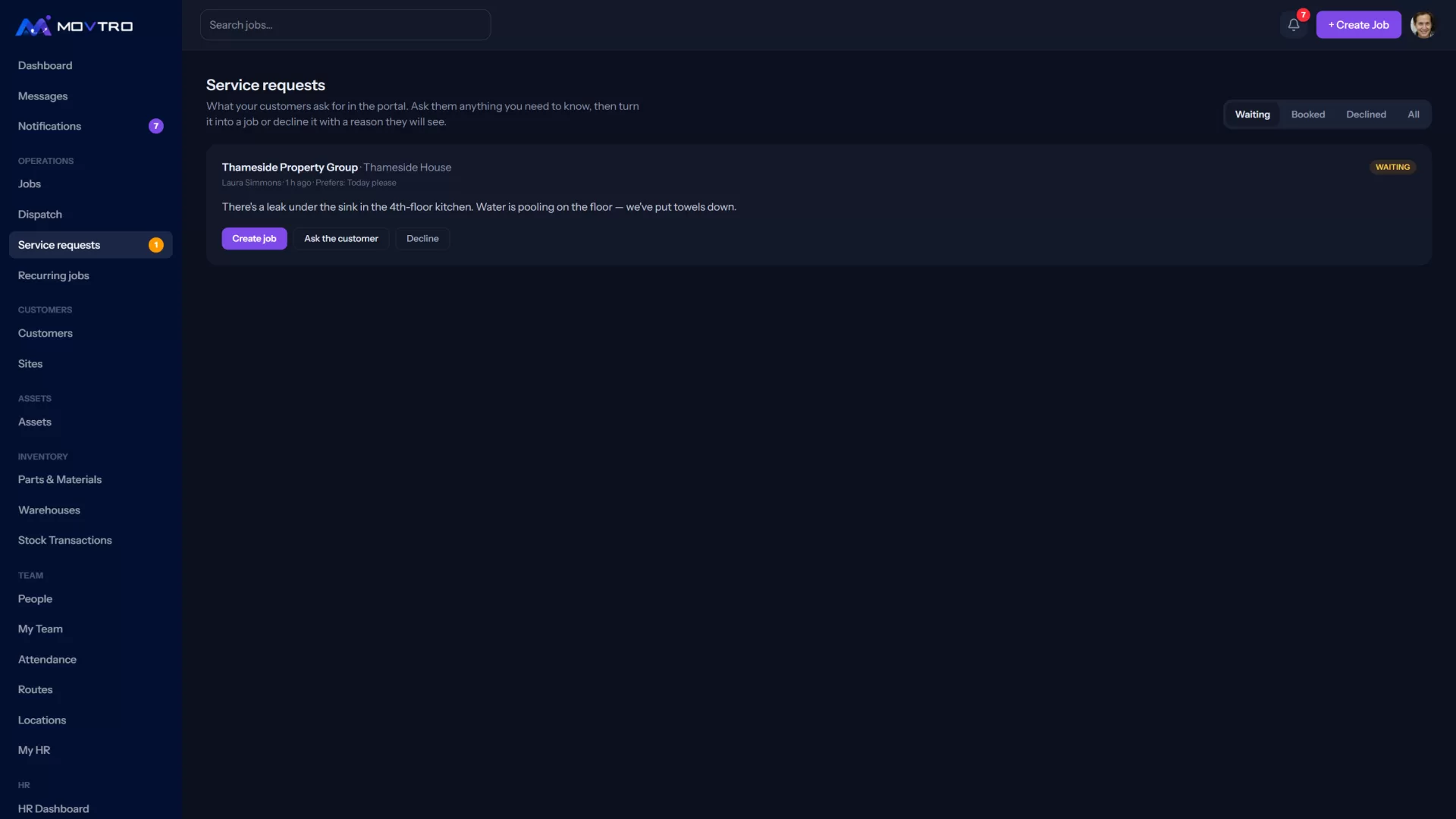
- Create job: the customer, site, description and any photos the customer attached go onto a new job, with the photos under the job's Documents. Set the job title, type, priority, technician and due time, then create it. The customer is told it's booked.
- Ask the customer: if you need more information first, type your question. It goes to the person who raised the request, in their portal Messages, and they reply there. All the questions about that request stay in one conversation, linked from the request, and the conversation moves to the job if you book it.
- Decline: give a reason. The customer sees it, so write it for them, for example "This is covered by the building's own lift contractor."
Check the Waiting tab at least once a day. Leaving a request undecided is the quickest way to lose a customer's trust.
Approving finished work
When a finished job is waiting for review, the customer sees a message on the job saying the work is complete and asking them to review it. They can Approve it, or describe what still needs attention and Submit for rework, which sends the job back to your team.
Tips
- Invite the person who actually raises problems, such as the facilities manager, as well as the account owner.
- Keep site names clear, because customers pick from them when raising requests.
- Customers look at the technician's photos first, so encourage before and after photos on every job.