How to Choose Which Notifications You Get
For each kind of notification, choose whether you get it in the app, by email, or as a phone and browser alert.
Movtro can tell you about new jobs, approvals, messages and other updates in three ways, and you pick the ones you want for each kind of notification.
Where notifications arrive
- In-app: the bell and the Notifications page.
- Email: sent to the address on your account.
- Phone & browser alerts: a pop-up on your phone or computer, even when Movtro is not open.
Change your preferences
- Go to Administration → Settings and open the Notifications tab.
- For each kind of notification, tick or untick In-app, Email and Phone & browser alerts.
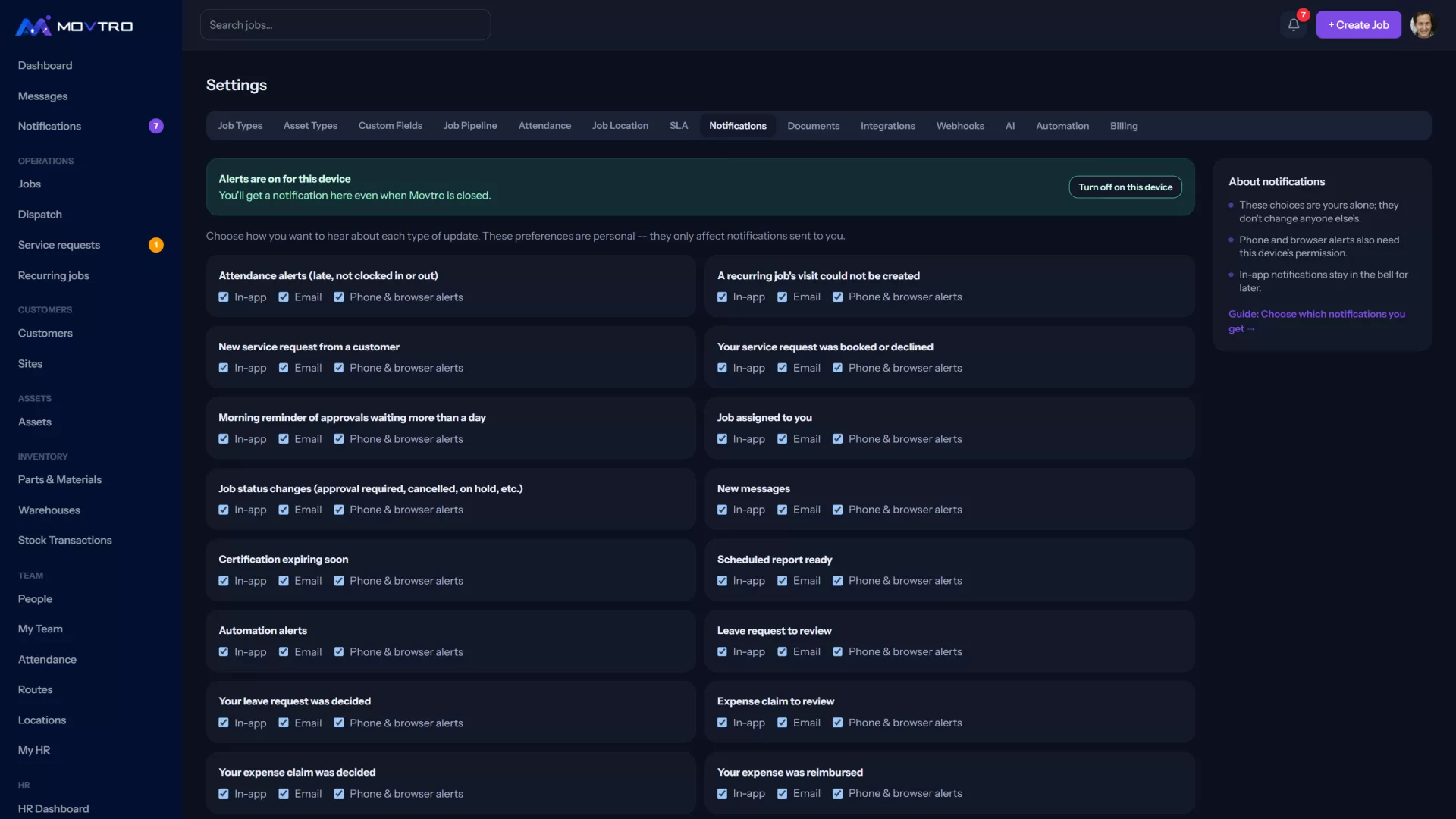
Changes save immediately and affect only you.
What you can be notified about
The list depends on your role and includes:
- Job assigned to you
- Job status changes (approval required, cancelled, on hold)
- New messages
- Certification expiring soon
- Attendance alerts (late, not clocked in or out)
- A recurring job's visit could not be created
- New service request from a customer, and for customers, Your service request was booked or declined
- Automation alerts and Scheduled report ready
- HR: Leave request to review, Your leave request was decided, Expense claim to review, Your expense claim was decided, Your expense was reimbursed, Your salary advance was decided, New payslip, Payroll ready for review and New announcement
Suggestions
- Technicians should keep Job assigned to you on as a phone alert, so new work reaches them straight away.
- Managers can turn email off for things they check in the app anyway, and keep alerts for approvals that are waiting on them.
- Everyone should leave in-app on, because that is the record you can look back at.
Phone and browser alerts not arriving?
Your phone or browser has to allow them. When Movtro asks to show notifications, choose Allow. If you refused earlier, turn notifications on for Movtro in your browser's site settings or your phone's app settings. See troubleshooting.
Organisation timezone
The same tab holds the Organization timezone, which sets the local time for schedules, attendance and reminders. It is set once for the whole organisation.