How to Request and Approve Leave and Salary Advances
Set up leave types and holidays, request leave or a salary advance from the phone, and approve them. Balances and repayments are handled automatically.
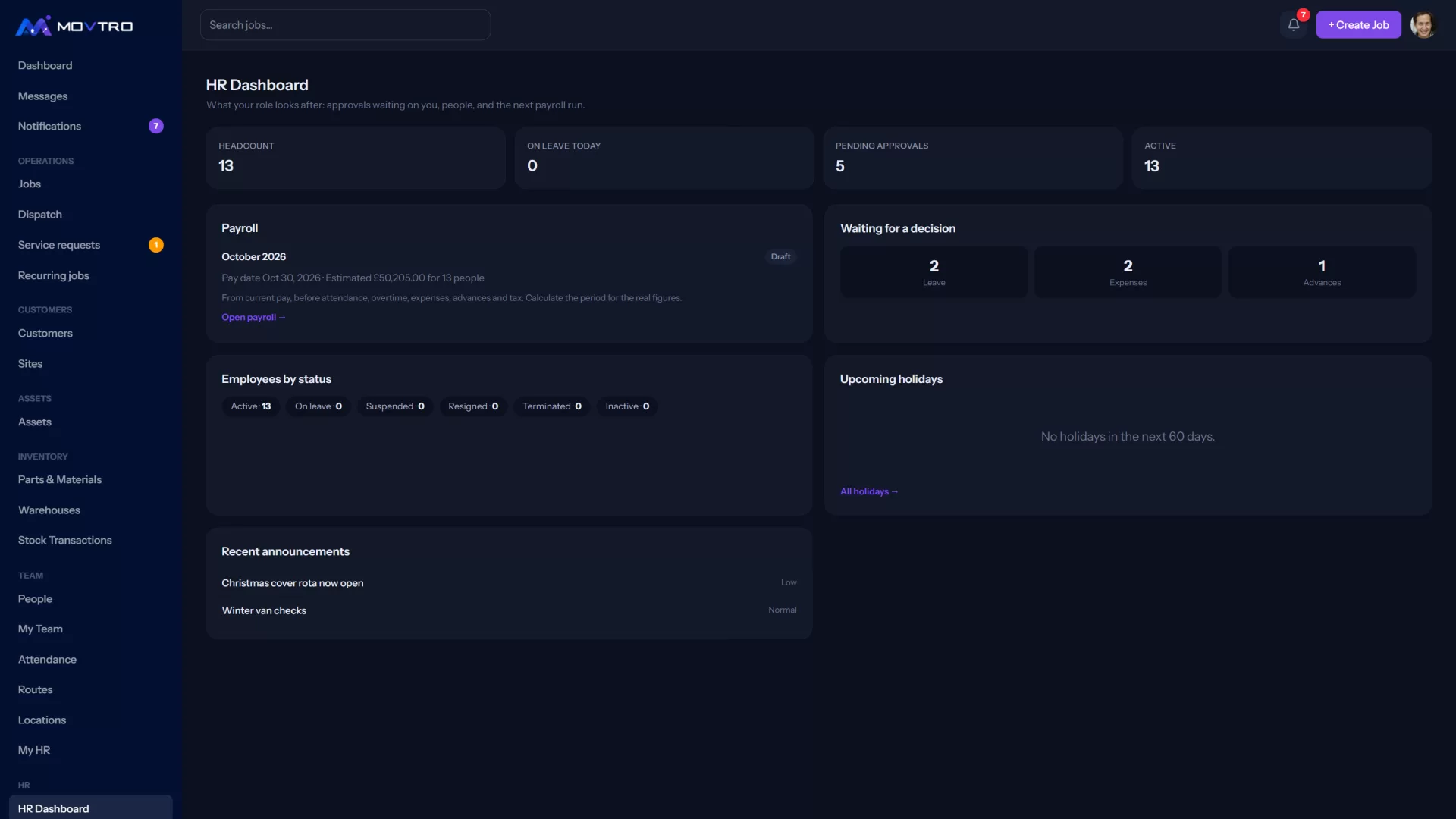
Set up leave (HR)
- Leave types: go to HR → Leave Types and add each type you offer with New leave type. Give it a Name and say whether it is paid, whether it tracks a balance, the Annual allocation (days), a Carry-forward cap (leave it blank for no limit), whether it needs approval and whether an attachment such as a medical certificate is required.
- Holidays: go to HR → Holidays and add public holidays with New holiday. Mark the ones that repeat as Every year, and limit a holiday to one department if you need to.
- Leave year and workweek: under HR → HR Settings, set when the leave year starts and which days are working days.
Only working days count as leave, so weekends and holidays that fall inside a request aren't used up.
Leave works on every plan; salary advances are part of the Operations + People plan.
Request leave (staff)
- Open My HR and tap Request leave.
- Pick the Leave type. Your balance for that type appears.
- Pick the dates. For half a day, choose a single date and then Morning or Afternoon.
- Add a reason if you want to, and tap Submit request.
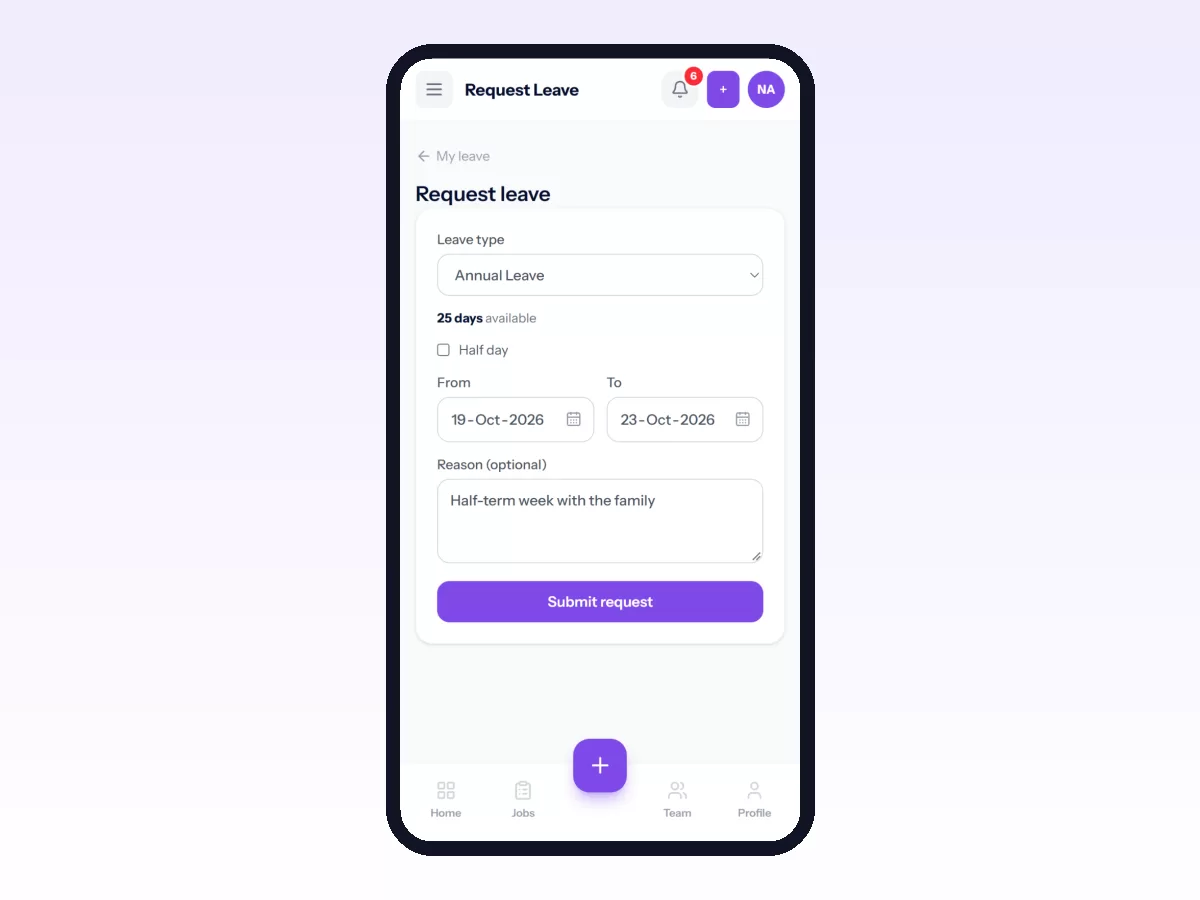
You can follow your requests and balances under My HR → My leave. If you cancel a request, the days go back into your balance.
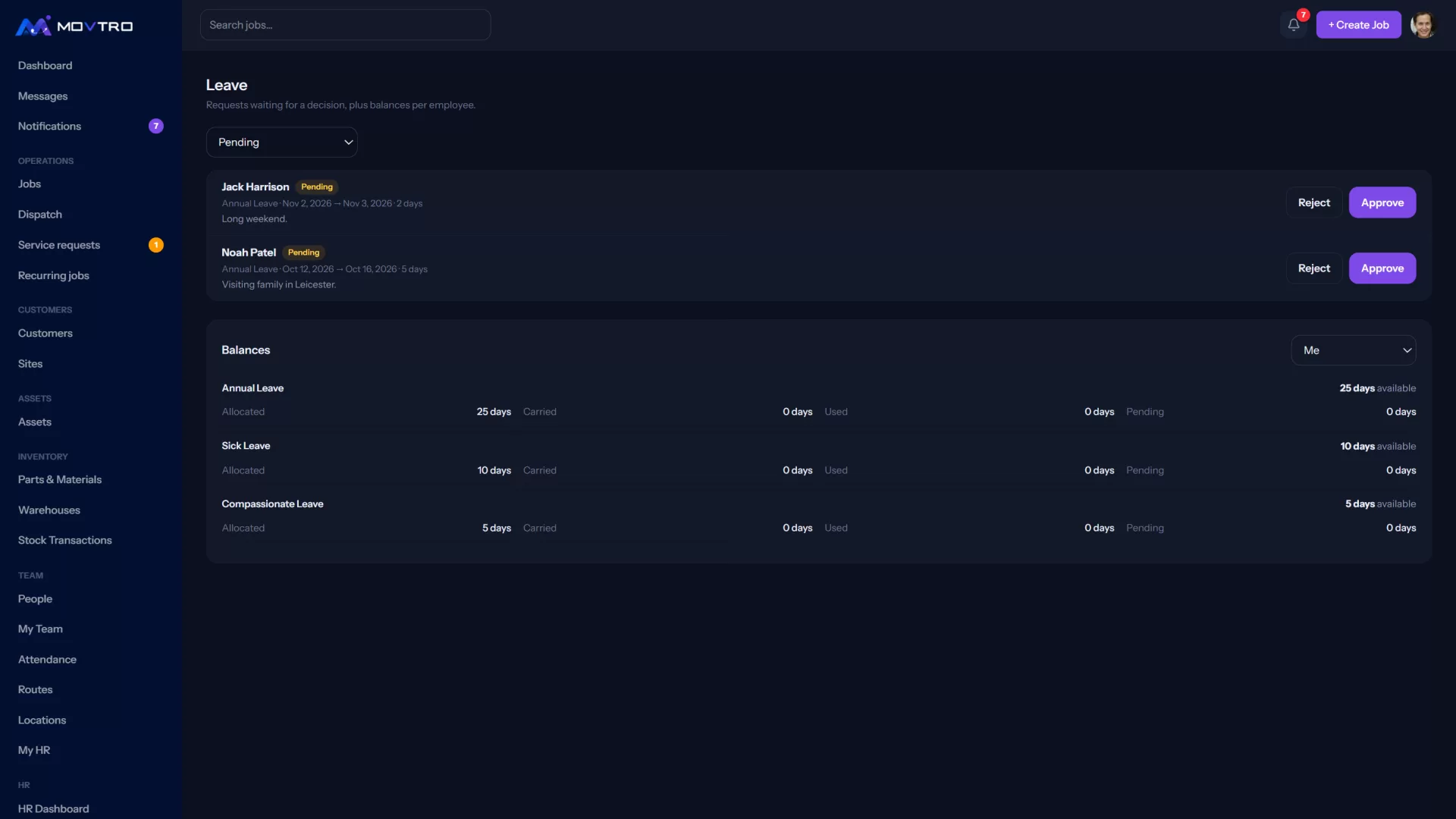
Approve leave (managers and HR)
Go to HR → Leave. Requests waiting for a decision are at the top. You can Approve a request, or Reject it and tell the employee why.
Look at the dispatch board before you approve, because Movtro's technician suggestions don't take leave into account.
Under the requests, Balances shows each person's allocated, carried, used and pending days. To correct a balance, enter +/- days and a reason. The change is kept in the balance history.
Unpaid leave goes into payroll automatically.
Salary advances
To request one (staff): open My HR → Salary advance, choose Request a salary advance, enter the Amount and Reason, and tap Request. You can only have one advance at a time, so settle it before asking for another.
To approve one (HR): go to HR → Advances. Either Approve it with an Installment per payroll run and the First deduction from period ending on/after date, and Movtro shows how many runs repayment will take, or Reject it with a note for the employee.
Each payroll run then deducts the installment until the advance is paid off. If someone repays in cash, use Record a manual repayment.