How to Run Payroll and Send Payslips
Set up salaries, create a monthly payroll period and calculate it from attendance and leave. Then review each entry, approve, lock to issue payslips and mark the period paid.
Movtro runs payroll once a month, working from each person's salary, attendance and approved leave. Payslips go out as PDFs that staff can see on their phone.
Payroll and payslips are part of the Operations + People plan.
You need payroll permissions to do this, which usually means HR.
Before your first run
- HR settings: under HR → HR Settings → General, set the Default currency, Workweek, Leave year starts in and Overtime multiplier. Under Pay components, set up the allowances and deductions you use, such as a transport allowance or a loan deduction.
- Employee records: everyone you pay needs an HR record under HR → Employees.
- Salaries: open each employee, go to Compensation and add a New salary record with the Base salary (monthly) and any recurring components. Anyone without a salary record is left out of payroll.
1. Create the period
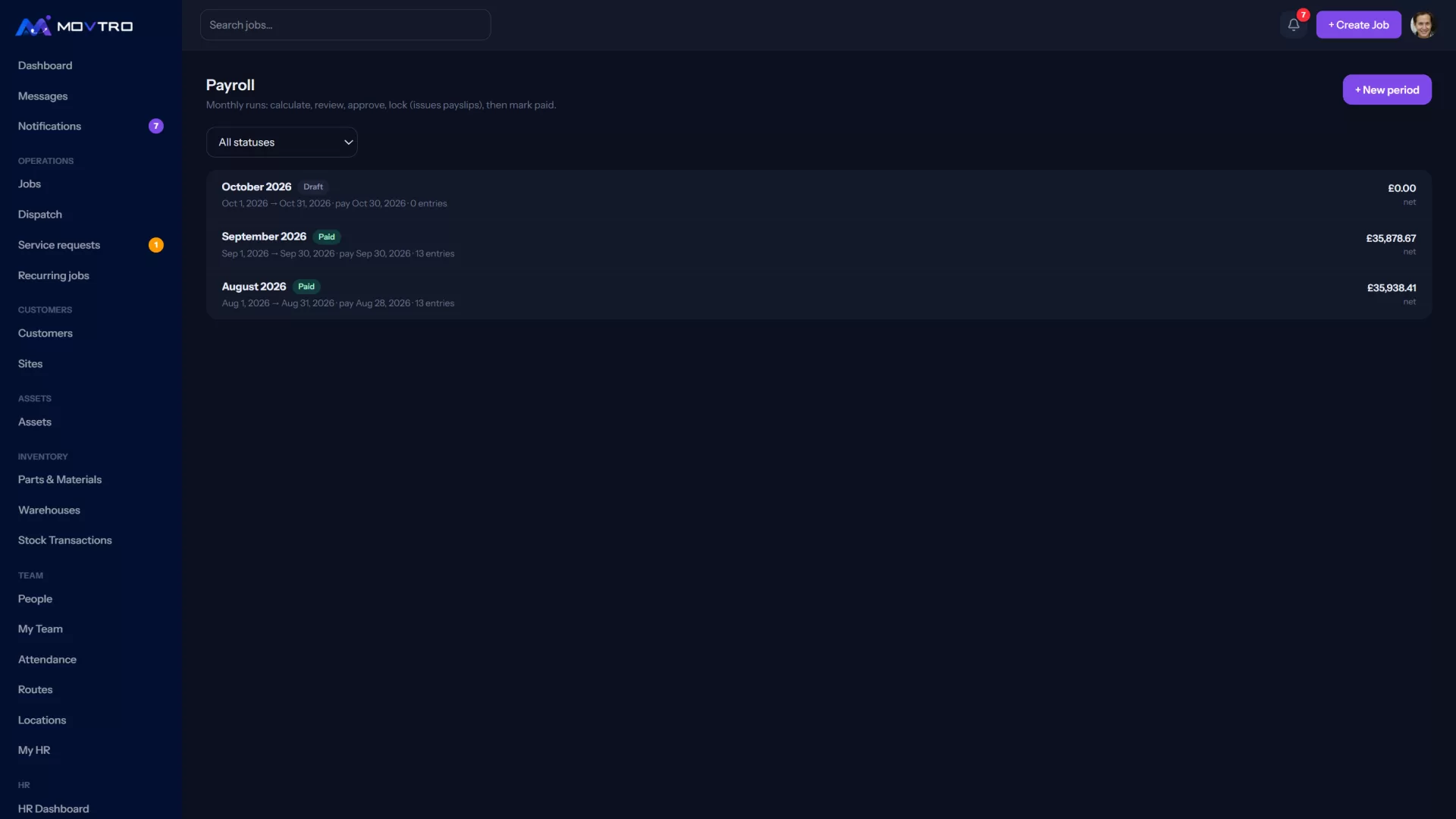
Go to HR → Payroll, choose New payroll period, set the Start and the Pay date, and click Create.
2. Calculate
Open the period and click Calculate. Movtro creates an entry for every active employee who has a salary, covering base pay, components, overtime, unpaid leave, advances being repaid and any expenses reimbursed through payroll.
3. Review each entry
Open each entry and check:
- Attendance: payable days, unpaid leave days, absent days, overtime minutes and the late count, worked out from clock-ins, approved leave and holidays. Correct anything that's wrong, then click Confirm.
- Adjustments: one-off additions or deductions. Pick a component and an amount; they apply when you recalculate.
- Manual tax deduction: Movtro doesn't calculate tax, so enter the amount to deduct here.
- Exclude from this run: leaves someone out this month, with a reason.
When you've made changes, click Recalculate.
4. Approve
Click Approve. The button stays unavailable until every entry's attendance is confirmed and nobody has a negative net pay.
5. Lock and issue payslips
Click Lock & issue payslips. Each payslip becomes a final snapshot and staff get a notification. Payslips appear under HR → Payslips, and each person sees their own under My HR → My payslips with a PDF to download.
6. Mark paid
Once the salaries have gone out, click Mark paid.
Fixing mistakes
- To correct and recalculate, Reopen an approved period or Unlock a locked one, giving a reason.
- Void a period that shouldn't have been created.