How to Submit and Approve Expenses
Staff submit expenses with receipts from their phone. Supervisors and HR approve them, and the money is paid back separately or with the next payroll.
Field staff spend money on the road: fuel, parking, a part from a local shop. In Movtro they claim it from their phone and get paid back with no paperwork.
Expense claims are part of the Operations + People plan.
Choose the approval flow (HR)
Under HR → HR Settings → General, set Expense approval flow to one of:
- HR decides directly: claims go straight to HR.
- Supervisor first, then HR: the person's supervisor approves, then HR.
Submit an expense (staff)
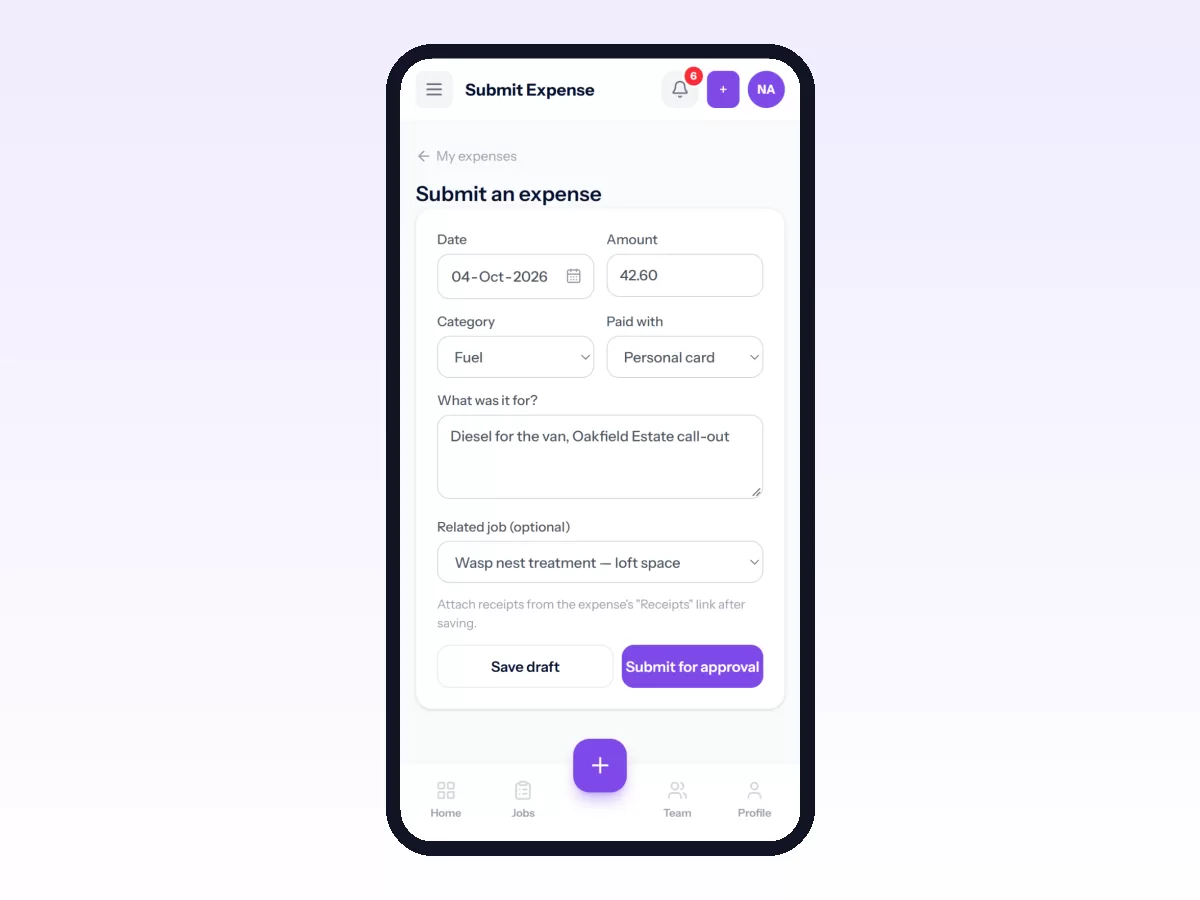
- Open My HR and tap Submit expense.
- Fill in:
- Date and Amount.
- Category: Tools, Materials, Fuel, Travel, Parking & tolls, Meals, Communication or Other.
- Paid with: Cash, Personal card, Company card or Other.
- What was it for?
- Related job (optional), if you want to link the cost to a job.
- Tap Submit for approval.
- Attach a photo of the receipt using the expense's Receipts link.
You can see your claims and their status under My HR → My expenses, and cancel any claim that hasn't been decided yet.
Approve or reject (supervisors and HR)
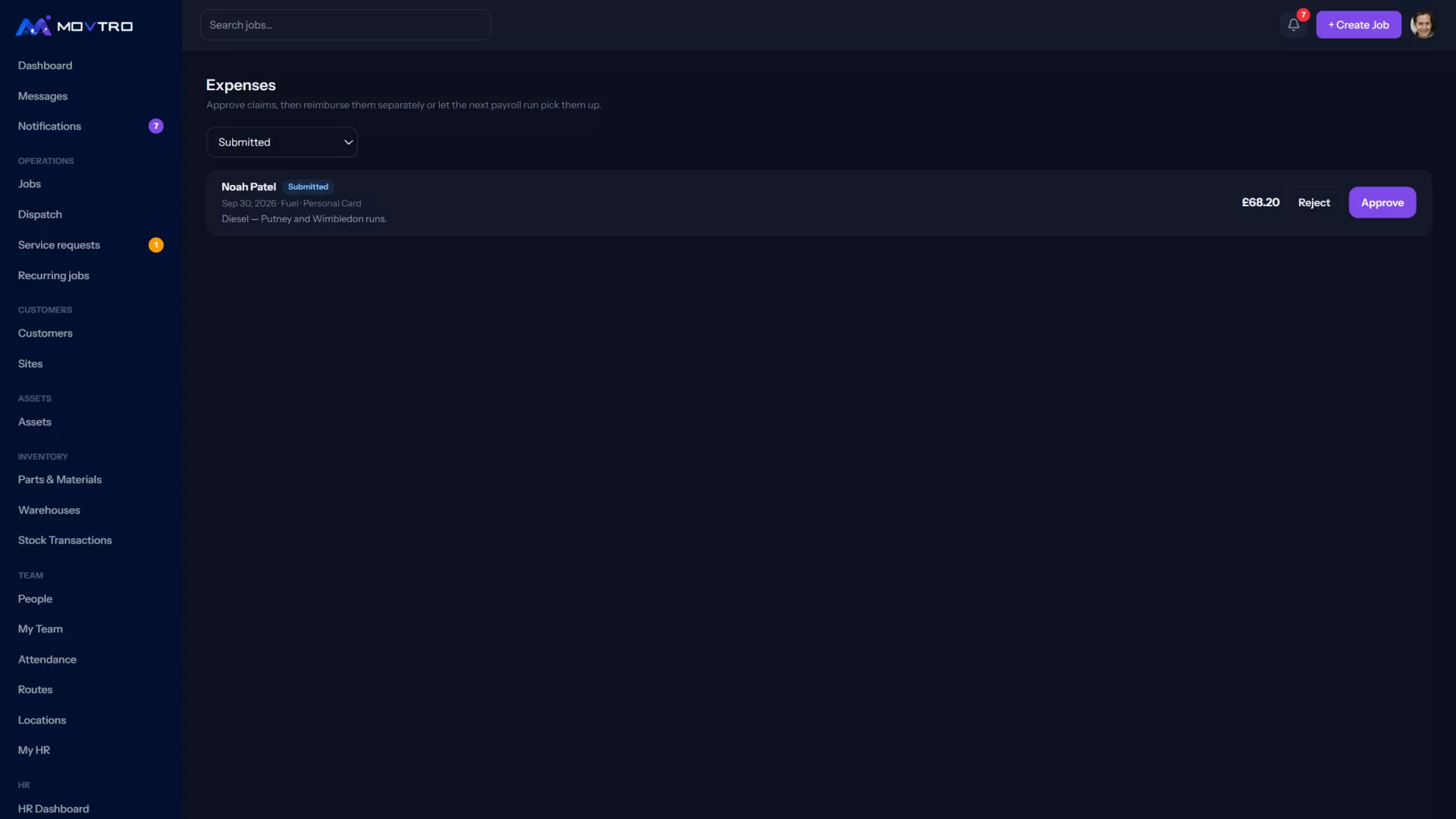
Claims waiting for you are under HR → Expenses.
- Approve: pick an answer for How will it be paid back?, either Separately (bank transfer / cash) or With the next payroll run. Add a comment if it helps.
- Reject: tell the employee why.
You can't approve your own claim.
Pay it back
- Separately: after paying, open the claim and click Mark reimbursed, entering the method (bank transfer, cash or other) and a reference.
- With the next payroll run: the amount is added to the person's next payslip automatically, and they see "Paid with your next payslip".
The person gets a notification at each step.
Tips
- Ask for the receipt photo on the same day. Faded receipts cause most disputes.
- If claims are linked to jobs, you can see what each job really cost.