How to Add Assets and See Their Service History
Register the equipment you service or own, with its serial number and warranty, link jobs to it, and see every visit it has had on one page.
An asset is any piece of equipment you service or own: an AC unit, a generator, a lift, a van, a tool. Once it is recorded, every job it has had builds up into a history.
Add an asset
- Go to Assets → Assets and click + Add Asset.
- Fill in what you know:
- Asset name: what your team calls it, for example "Rooftop chiller 2".
- Category: Vehicle, Tool, Equipment, Material or Other.
- Type: picked from your own list under Settings → Asset Types (for example "Split AC", "Generator").
- Serial number, Model and Manufacturer.
- Customer and Site: where it is installed.
- Assigned to: the person responsible for it, which helps with tools and vehicles.
- Purchased and Installed dates.
- Warranty provider and Warranty expires.
- Notes.
- Save.
Keep its status current
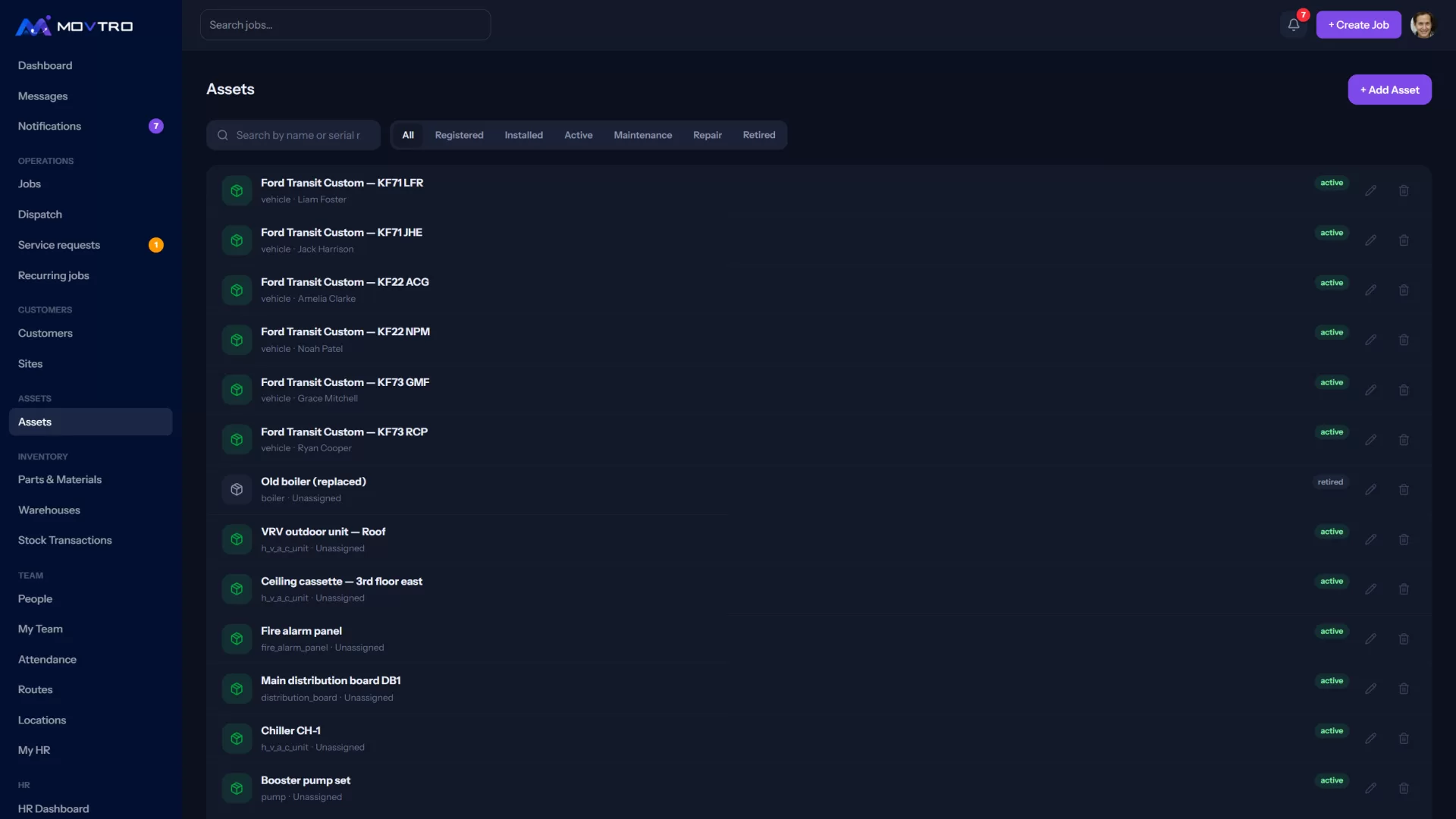
An asset is always in one of these states: Registered, Installed, Active, Under maintenance, Repair or Retired. Change it on the asset's page as things happen. Movtro records every change, so you can see how long the asset spent in each state.
If a unit is replaced, set the old one to Retired and add the new one as a separate asset. Editing the old record would muddle the site's history.
Link jobs to it
- When you add a job, pick the unit under Equipment / asset.
- On a recurring job, pick the assets serviced on each visit. If there are several units, one combined visit lists each of them on the checklist.
See the service history
Open the asset. Its page shows:
- Identity: category, model, manufacturer, serial number and who it is assigned to.
- Customer and site.
- Warranty, flagged Expiring soon or Expired.
- Service history: every job on this unit, including combined visits that covered it.
- Recurring jobs that include it, with + Add recurring job.
- Documents: manuals, certificates, drawings.
Check the history before you send a technician. A fault that keeps coming back usually has a known cause.
Across all assets
In Assets → Assets you can search by name or serial number and filter by status. The Assets tab under Insights → Reports shows warranty status across all your equipment and how often each asset has needed a job.