Proof of Delivery for Small Fleets: Photos, Signatures and Reports
What good proof of delivery looks like for a small haulage or delivery firm, how to capture it at the drop, and how to use it when a customer disputes a delivery.
For a small haulage or delivery company, a delivery is finished when you can prove the load came off the vehicle: in what condition, at what time and who accepted it. Without that proof, a customer who says "it never arrived" or "two pallets were damaged" wins by default, and the cost comes out of your margin.
Small fleets often get by with a paper note in the cab and a photo on the driver's own phone. This guide covers what good proof looks like and how to capture it without slowing drivers down.
What counts as proof of delivery
Good proof of delivery answers five questions, each with something you can show:
- Was it delivered? A record that the drop was completed, with the time.
- Where? Where the driver was when they marked the delivery, compared with the delivery address.
- To whom? A signature with the name of the person who signed.
- In what condition? Photos of the load at the drop, showing the goods, the labels and any damage.
- Was anything different from the order? Short, refused or damaged items, written down at the time.
A paper note covers one or two of these. A signature by itself only proves that someone signed, without showing what they signed for. It takes all of them together to settle a dispute.
If your customers or the law require consignment notes or delivery notes, keep using them. Digital proof sits alongside that paperwork and doesn't replace a document someone else requires.
Capture it at the drop, every time
Proof only works if it's captured the same way on every delivery. A simple routine for drivers:
- On arrival, move the job to its arrival stage. That records the arrival time and, with location on, where the driver was.
- Photograph the load before it comes off, with the labels or paperwork visible.
- Photograph it in place after unloading: on the bay, in the store room, at the door.
- Photograph any damage before anyone moves it, and mark the photo as damage.
- Fill in the checklist: quantities, condition, anything refused.
- Get the signature, with the signer's name typed in as well as the scribble.
- Complete the job before driving off.
Make the important parts compulsory. On the busiest days, drivers skip anything they only "should" do.
A checklist built for deliveries
Use the same short checklist on every delivery of the same type. For a pallet delivery, for example:
- Number of pallets delivered (a number).
- Pallets wrapped and intact (yes / no / not applicable).
- Any items refused by the customer (yes / no).
- If yes: what was refused and why (text).
- Photo of the delivered load (photo).
For chilled or temperature-sensitive goods, add a number question for the reading at the drop with an expected range. If the driver enters a reading outside that range, the office hears about it straight away and not a week later.
On a load with a pickup and a delivery, record the times too, meaning when the driver arrived at and left each stop. Waiting time at a slow pickup is then on record and nobody has to rely on memory.
Failed and part deliveries
Not every drop goes to plan. Agree a rule for each case and build it into the job so it doesn't depend on a phone call:
- No one there, or no access: photograph the door or gate and the address, report the problem on the job as No access, and leave the job open for the office to rebook.
- Refused: record what was refused and why, photograph it and report it as Customer refusal.
- Short or damaged: count it on the checklist, photograph it and add a note the customer can see.
The office can then reschedule or chase with the evidence already on the job.
After the delivery: send it and keep it
Each completed job holds everything together: photos, checklist answers, notes, the signature and the times it moved through its stages. A month later it's quicker to find the job than to search a driver's camera roll, and many customers are happy to get a short report after each delivery without asking for one.
Proof of delivery in Movtro
In Movtro each delivery is a job at the customer's site, worked on the driver's phone through the web app or the Android app. Companies that sign up as Trucking & haulage start with load types (Full load, Part load / multi-drop, Container move) that already have proof-of-delivery checklists and require the receiver's signature. The checklists cover things like the seal number, whether the load is secured, whether the count matches the paperwork (with shortage or damage details required when it doesn't) and who received it. See the trucking and haulage page.
- Photos are added on the job and labelled, for example Before, After, Damage or Proof. Photo steps can also sit inside the checklist.
- Checklists support ticks, yes/no/not applicable, numbers, text, choices and photos. Number questions can have an expected range, and a reading outside it raises a problem on the job automatically.
- A checklist item marked required has to be answered before the job can be completed. A job type can also require at least one photo, the customer's signature, or both. Set that on your Delivery job type and no delivery can be completed without them.
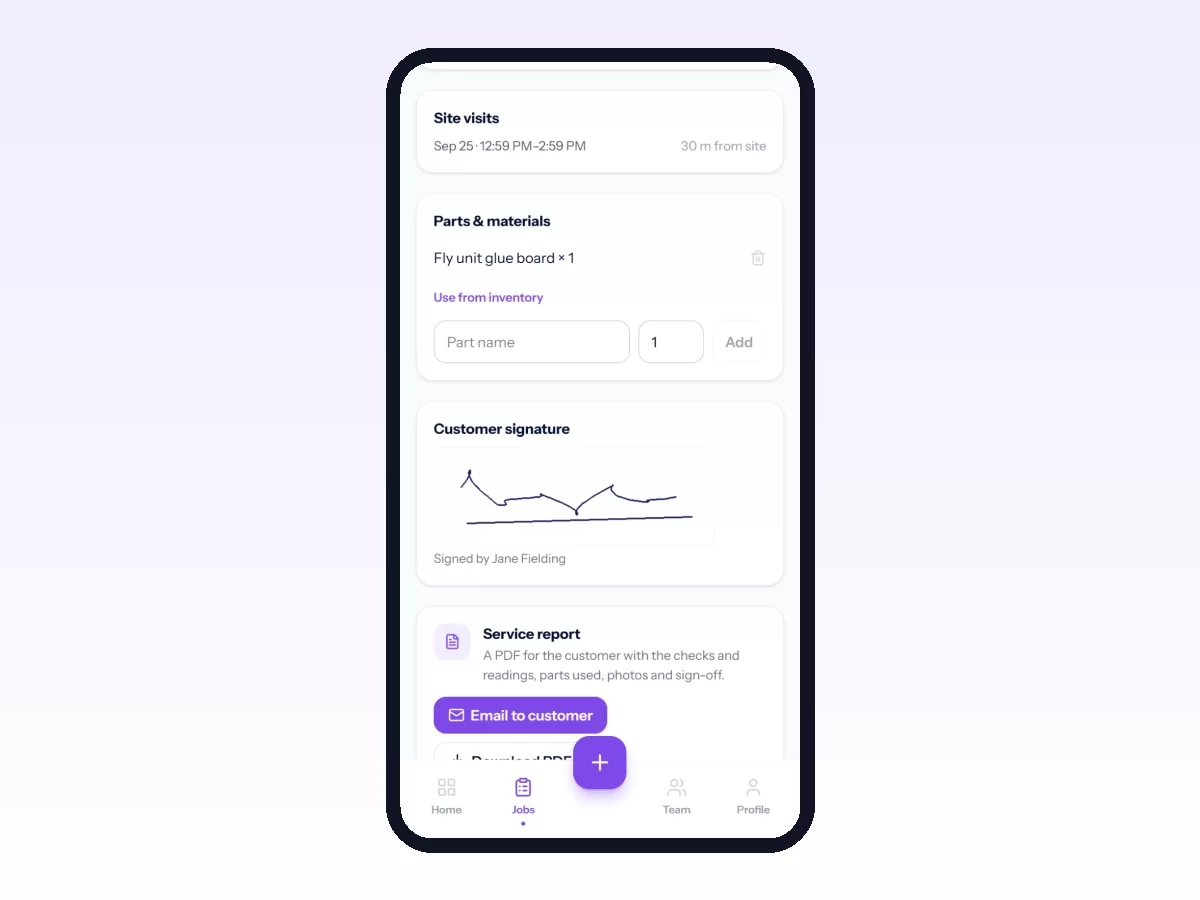
- The signature is drawn on the phone, and the name of the person signing is saved with it.
- Every status change records who made it and when, and, depending on your job location setting, where the driver was. The job page shows those changes as numbered points on a map with the time and distance between steps, and records when the job reached its arrival stage. A stage such as At drop can be limited so it can only be reached within a set distance of the site (200 metres unless you change it). As long as the site has its map pin, nobody can mark a delivery from the depot.
- A load can list its pickup, delivery and other stops in order. The driver taps Arrived and Left at each one, and the load shows the time spent at every stop. On the job page managers can also see the route the driver's Android phone recorded while the job was being worked, with the distance driven, split into empty and loaded when the stops were used.
- Problems are reported on the job with a category, such as No access or Customer refusal, and a severity.
- Without signal, photos, checklist answers, notes and the signature are saved on the phone and sent once the connection comes back.
- When the job is completed, Movtro builds a service report PDF from it: who came and when, checklist answers and readings, parts used, customer-visible notes, photos and the signature. Staff can email it to the customer, and customers with portal access can download it themselves. Internal notes are never included.
- If your process includes customer confirmation, portal customers can approve the job or send it back with a comment.
Movtro does not scan barcodes or produce consignment notes or bills of lading, so keep those where your customers require them.
Related reading: proof of completion for delivery and installation crews, proof of service and daily dispatch for a small fleet. Or start free.
Frequently asked questions
What is the best proof of delivery for a small fleet?
Use several kinds together: photos of the goods at the drop, a checklist of quantities and condition, a signature with the signer's name, and a record of when and where the delivery happened. A customer can argue with any one of these alone, but together they usually settle it.
Can I stop drivers completing a delivery without a signature?
Yes. In Movtro, set the job type to require the customer's signature, plus a photo if you want one. A job of that type can't be completed until both are on it.
How do customers get the proof of delivery?
When the job is completed, Movtro builds a PDF report from the job record. Your team can email it to the customer, and customers with portal access can open the job and download it themselves.
Does Movtro replace a consignment note or bill of lading?
No. Movtro records the delivery as a job with photos, signature, checklist and location. Where a customer or regulation requires a specific transport document, keep issuing it as well.