Daily Dispatch for a Small Trucking or Delivery Company
How a small trucking, haulage or delivery firm can plan, assign and follow the day's loads from a phone, without a whiteboard and a dozen WhatsApp chats.
In a small trucking, haulage or delivery company, dispatch is rarely anyone's job title. It's the owner, the transport manager or whoever picks up the phone, working from a whiteboard, a spreadsheet and a WhatsApp group for each customer. That's fine with three drivers. By ten, things start to slip: a drop gets missed, two drivers turn up at the same yard, and at 3pm nobody can say which loads are still outstanding.
This guide lays out a daily routine that a one- or two-person office can run from a phone, and shows how it works in Movtro.
What daily dispatch involves
Whatever software they use, small fleets all do the same six things every day:
- Collect the work: orders by phone, by email, from a customer's own system, or a regular run.
- Assign it, deciding which driver takes which load.
- Put it in order, so each driver's day is achievable.
- Follow it: know who has set off, who has arrived and who is stuck.
- Deal with problems, like nobody at the gate, a refused load or a long wait at the pickup.
- Close the day by confirming what was delivered, with proof, and rolling over what wasn't.
Set up once
Start from the trucking template. A company that signs up as Trucking & haulage gets Movtro set up for loads. Jobs are called loads and technicians are called drivers. The stages run Assigned, To pickup, At pickup, In transit, Delivered, Office check, Closed, and there are load types (Full load, Part load / multi-drop, Container move) with proof-of-delivery checklists and a required signature. Loads also get fields for load number, trailer type, weight, pickup address and extra charges such as waiting time. You can rename or change any of it later. See the trucking and haulage page.
Then add your customers and delivery points. Add each customer once, with their delivery addresses as sites, and give each site a pin on the map, because travel estimates, location checks and arrival messages all use it. Put whatever drivers always ask about in the site's access notes: which gate, the booking-in contact, bay hours, parking.
The afternoon before: build tomorrow
- Add each load as a job, with the customer, delivery site, due date and time, and a priority.
- Add its stops. On a load, list the pickup, the delivery and any other stops in order. On the day the driver taps Arrived and Left at each one, so you know how long they waited at every stop.
- Assign a driver, or leave it for later. Unscheduled loads wait in a pool at the top of the dispatch board until you give them a day.
- Use recurring jobs for regular runs, such as a weekly delivery to the same shops. Movtro creates each visit ahead of time.
If you're not sure who to send, Suggest assignee on the dispatch board ranks drivers on matching skills, open workload, availability and, where live location is available, travel time. It doesn't check leave or licences, so you'll need to keep those in mind yourself.
Each load has one assignee. For a two-person crew, assign the lead driver.
Put each driver's day in order
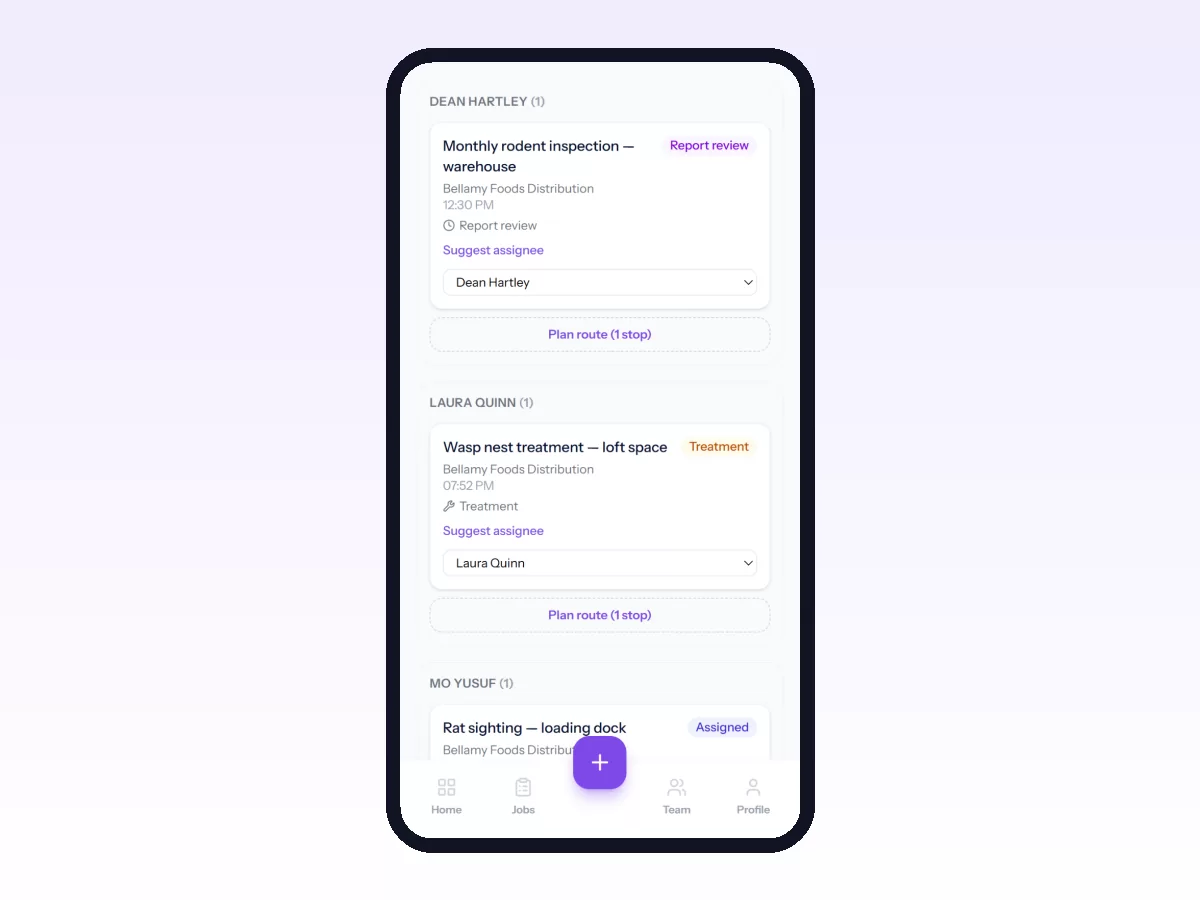
On the dispatch board each driver has a column for the chosen day. Plan route turns their jobs into numbered stops you can move up or down, each with a distance, a travel estimate and an expected arrival time.
The estimates are straight-line distances at an average speed. They help you order the day and give a customer a time window, but they know nothing about roads, traffic, low bridges or weight limits, and Movtro doesn't pick the order for you. A dispatcher who knows the area can order six or eight drops well by hand: fixed booking times first, then outwards and back.
Drivers see their day in order with the access notes, and open Google Maps for turn-by-turn directions.
During the day: follow it from your phone
The web app works in a phone browser, and drivers use either the Android app or the web app. On a phone the dispatch board stacks the driver columns, and cards update as drivers move loads through their stages, so you can see To pickup, In transit and Delivered without ringing anyone.
- To see where everyone is, use the team map, which shows clocked-in drivers who share their location. Tap a driver to see the route their phone recorded that day. See driver shifts, hours and live location.
- If the plan changes, reassign a load from its card and the new driver gets a notification.
- If there's a problem at a stop, drivers report it on the job with a category such as No access or Customer refusal, a severity and a description. It shows in the supervisor's list of open problems the same day.
Drivers can keep working without signal. Stage changes, checklist answers, notes, photos and the signature are saved on the phone and sent when the connection comes back. Tapping Arrived and Left at a stop does need a connection.
Keep customers informed
Customers you invite to the portal can follow their own loads through scheduled, assigned, on the way, arrived and completed. While a load is in a travelling stage, such as To pickup or In transit, they see the driver's position on a map for that load only.
Movtro can also tell customers automatically. Both messages stay off until you turn them on under Settings → Job Pipeline:
- On the way: sent when the load first moves into a travelling stage.
- Nearly there: sent when the driver's phone comes within 500 m, 1 km, 2 km or 5 km of the delivery site (you choose which) while the load is still travelling. It needs live location and a site with a map pin.
Each message goes once per job, by email to the customer's address and to their portal contacts, who can also get it in the portal and as a push notification, with a link to follow the driver on the map. Only the driver's first name is shared.
Close the day properly
- Check the board for anything not done, move it to tomorrow and note why.
- Look through the delivered loads. Each one holds its photos, checklist answers, notes and signature, every status change with who made it and when, the time spent at each stop, and the route the driver's phone recorded on that load.
- Send the proof. Once a load is completed, Movtro builds a PDF report from it that you can email to the customer.
What this routine does not replace
Movtro runs the day's work: loads, drivers, proof and location during working hours. It isn't a freight system. It has no ELD or hours-of-service logging, no fuel tax reporting, no load boards and no rate confirmations. If your drivers have ELD or tachograph obligations, keep that equipment alongside Movtro. See Movtro as a simple TMS for small fleets.
Related reading: how to use the dispatch board, how to plan a route and replacing Excel and WhatsApp. Or start free.
Frequently asked questions
Can I run dispatch for a small fleet from my phone?
Yes, for the day-to-day work. In a phone browser you can add loads, assign and reassign drivers, put each driver's day in order on the dispatch board and watch the team map. Setting up customers, sites and job types is quicker on a laptop, but you only do that once.
Does Movtro optimise my drivers' routes automatically?
No. You put the stops in order and Movtro shows straight-line distances, travel estimates and arrival times. Drivers use Google Maps for directions. Movtro doesn't plan around vehicle height, weight or road restrictions.
How should I set up a multi-drop run?
There are two ways. If each drop needs its own photos and signature, create one job per drop and use Plan route to put them in order. If it's one load with several drops, use the Part load / multi-drop type and list the drops as stops on the load. The driver records arriving at and leaving each one, and the proof sits on the load as a whole.
Can customers be told automatically when the driver is on the way?
Yes, if you turn it on. Movtro can send an "on the way" message when the load moves into a travelling stage, and a "nearly there" message when the driver comes within a distance you choose of the delivery site. Each message is sent once per load.