How to Build, Save and Schedule Reports
Filter the jobs, workforce, customer and asset reports, export them as CSV or PDF, save the ones you use and have them emailed to you daily, weekly or monthly.
Movtro's reports show how the work is going across jobs, people, customers and equipment. You can filter them, download them and have the ones you check often emailed to you.
Managers, dispatchers and supervisors can see reports. Customers with portal access see reports on their own jobs only.
Open a report
Go to Insights → Reports and pick a tab:
- Jobs: total jobs, completion and closure rates, on-time rate, overdue jobs, rework and failures, time from scheduled to completed and from completed to closed, jobs by state, cancellations by reason, and jobs completed by month.
- Workforce: for each person, jobs completed, how many of those were on time, and time clocked in.
- Customers: jobs done for each customer, and how many had a problem reported.
- Assets: total assets, warranty status (active, expiring soon, expired) and how often each asset has needed a job.
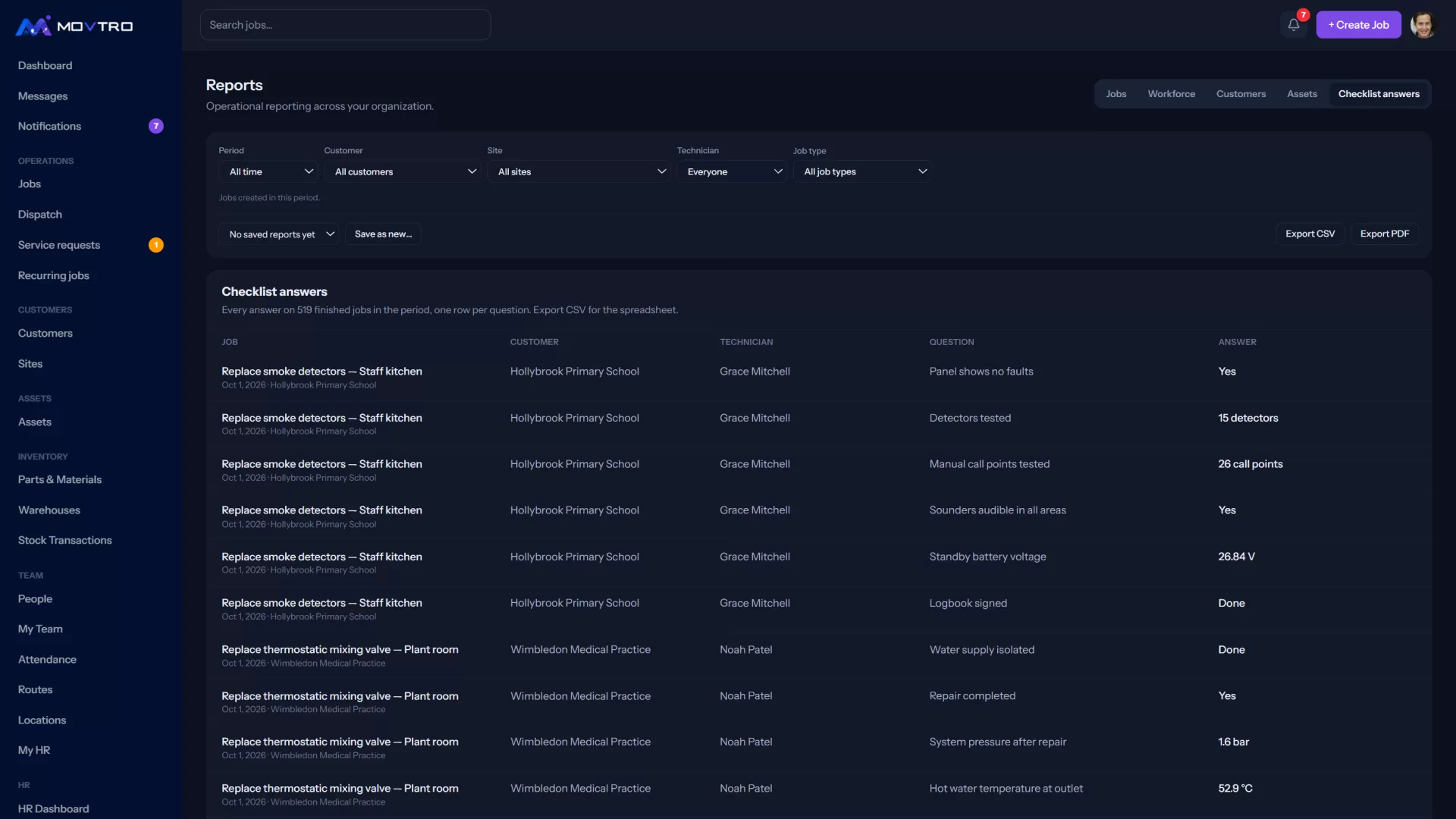
- Checklist answers: every checklist answer on the jobs finished in the period, one row per question, with the technician, customer and site, and any reading outside its expected range marked. Export it when someone wants a month of service readings in a spreadsheet.
Filter it
The toolbar above the report has:
- Period: All time, Last 7 days, Last 30 days, This month, Last month, or Choose dates… to set your own From and To. On the Jobs and Customers reports, the period selects jobs created in that time.
- Customer, Site, Technician and Job type, on the reports that use them.
Clear takes you back to everything.
Export it
Click Export CSV for a spreadsheet or Export PDF to share or print. The file holds exactly what the report shows, with your filters applied.
Save it
- Set the filters you want.
- Click Save as new… and enter a Name, for example "Weekly jobs, north team".
- Click Save.
Next time, pick it from Saved reports… and its filters are applied. To change one of your saved reports, pick it and click Edit, or Delete it.
Have it emailed to you
When you save or edit a report, set Email it to me to Every day, Every week or Every month and pick PDF or CSV. Movtro then emails you the report on that schedule with the file attached, so you get the numbers without logging in.
For a scheduled report, use a moving period such as Last 7 days. Each email then covers the latest week rather than the week you saved it. A saved report shows when it is emailed and when it was last sent.
Scheduled emails go to the person who saved the report. Check that Scheduled report ready is switched on for email under Settings → Notifications.
If you see "Save, schedule and export with Operations"
Your plan does not include saving, scheduling or exporting reports. You can still use the reports on screen. See how to change your plan.
A weekly review in ten minutes
Save a Jobs report and a Workforce report, both for Last 7 days, and have them emailed every Monday. Start with on-time rate, overdue and rework, then go through each person's jobs and hours. See field workforce productivity metrics.